
If your Android phone feels sluggish, certain websites refuse to load properly, or apps keep logging you out unexpectedly, cookies are often part of the problem. Cookies are small data files saved on your device by browsers and apps to remember preferences, sessions, and login details. Over time, they can become outdated, corrupted, or excessive, leading to performance and privacy issues.
Clearing cookies on Android is a straightforward task, but doing it correctly matters. The steps vary slightly depending on the browser, device brand, and Android version, and a careless approach can remove saved logins or settings you still need. This guide walks through safe, fast, and practical methods to clear cookies on Android without unnecessary disruption.
What cookies do on an Android phone
Cookies are designed to make browsing and app usage smoother. They store information such as:
- Login sessions for websites and apps
- Language and location preferences
- Items added to shopping carts
- Tracking data for analytics and ads
On Android, cookies are stored primarily within browsers like Chrome, Firefox, and Samsung Internet, but many apps also store cookie-like data internally.
Problems start when:
- Cookies become outdated or corrupted
- Websites change how they authenticate users
- Storage fills up with redundant data
That is when clearing cookies helps restore normal behavior.
When clearing cookies is actually useful
Clearing cookies is not something that needs to be done daily. It is most effective in specific situations:
- Websites repeatedly show errors or fail to load
- Login pages loop or refuse credentials
- Web-based apps behave inconsistently
- You want to remove stored tracking data
- Shared devices need a privacy reset
Understanding this context helps you choose the right level of cleanup rather than deleting everything by default.
How to clear cookies on Android using Google Chrome
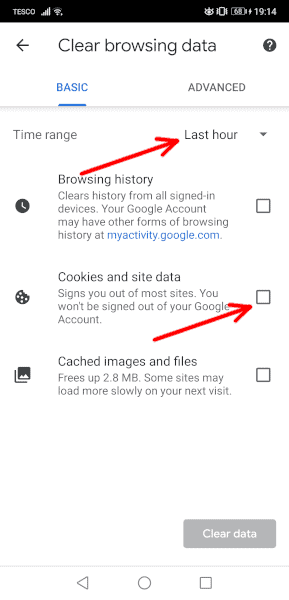
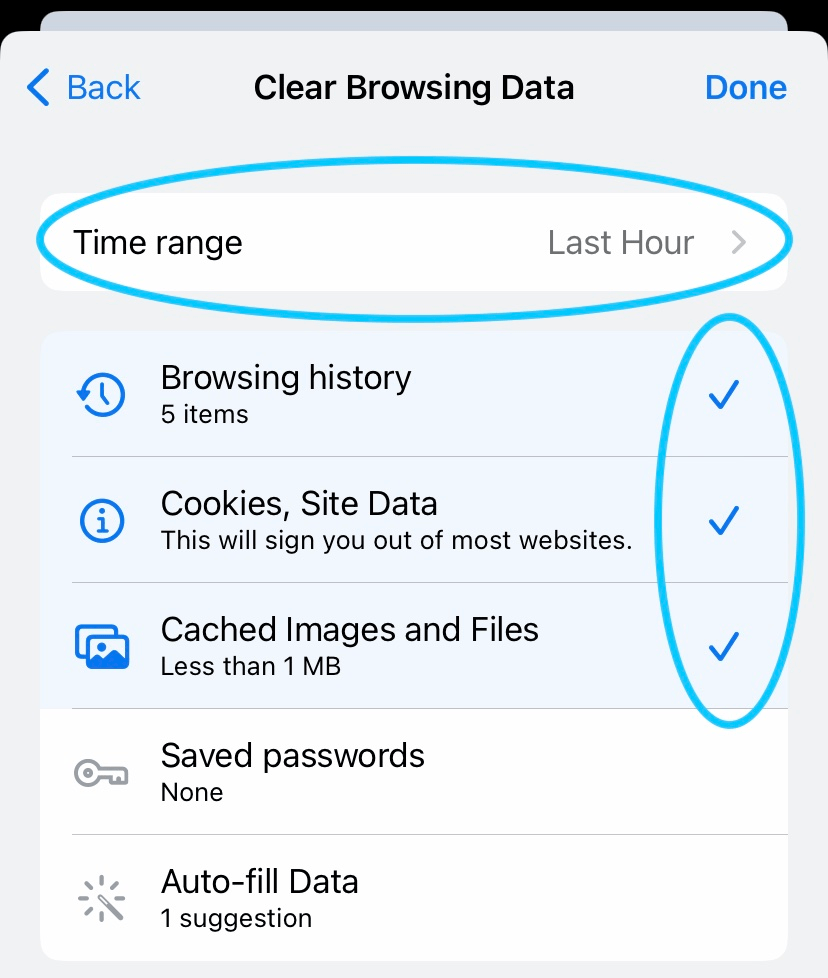
Google Chrome is the default browser on most Android devices, and it stores cookies centrally.
Step-by-step process
- Open Chrome
- Tap the three-dot menu in the top-right corner
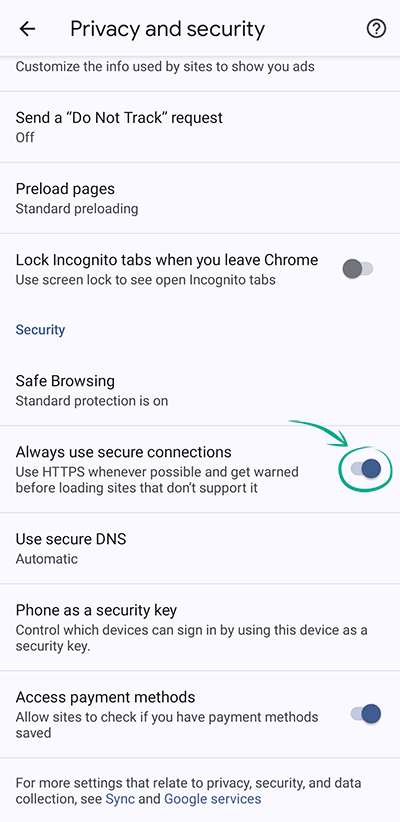
- Go to Settings → Privacy and security
- Tap Clear browsing data
- Select Cookies and site data
- Choose a time range (Last hour, Last 24 hours, or All time)
- Tap Clear data
Safe settings to use
- Leave Browsing history unchecked if you want to keep it
- Leave Cached images and files checked only if storage is tight
This approach removes cookies without resetting Chrome entirely.
Clearing cookies for a single website in Chrome
Sometimes one website causes trouble while others work fine. Clearing cookies only for that site is often the best solution.
How to do it
- Open Chrome → Settings
- Go to Privacy and security → Site settings
- Tap All sites
- Select the website
- Tap Clear and reset
This removes cookies and permissions for that site alone, preserving everything else.
How to clear cookies on Android in other browsers
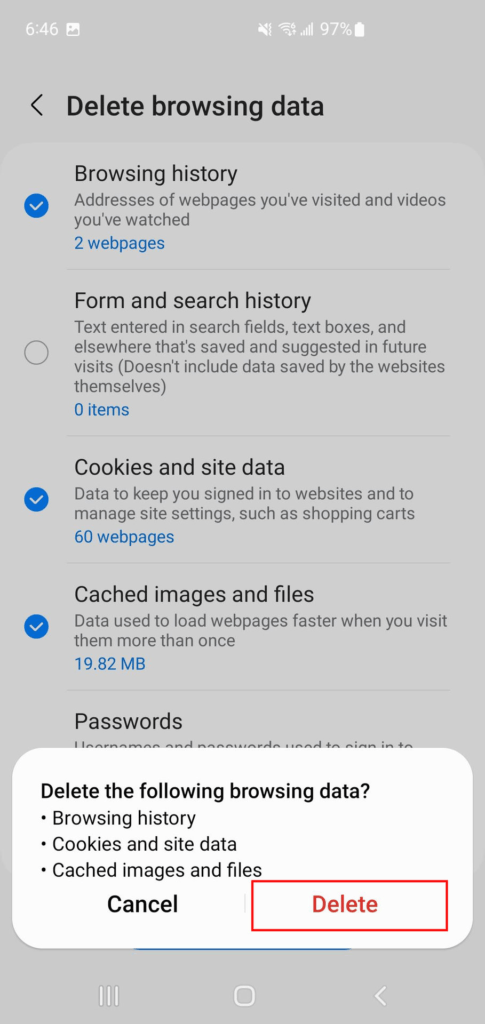
Samsung Internet
- Open Samsung Internet
- Tap the menu icon
- Go to Settings → Privacy dashboard
- Tap Delete browsing data
- Select Cookies and site data
- Confirm deletion
Samsung Internet provides granular controls and is often more privacy-focused by default.
Mozilla Firefox
- Open Firefox
- Tap the three-dot menu
- Go to Settings → Privacy and security
- Tap Delete browsing data
- Select Cookies
- Confirm
Firefox allows advanced users to manage tracking cookies separately, which can be useful for privacy-sensitive browsing.
Clearing cookies stored by Android apps
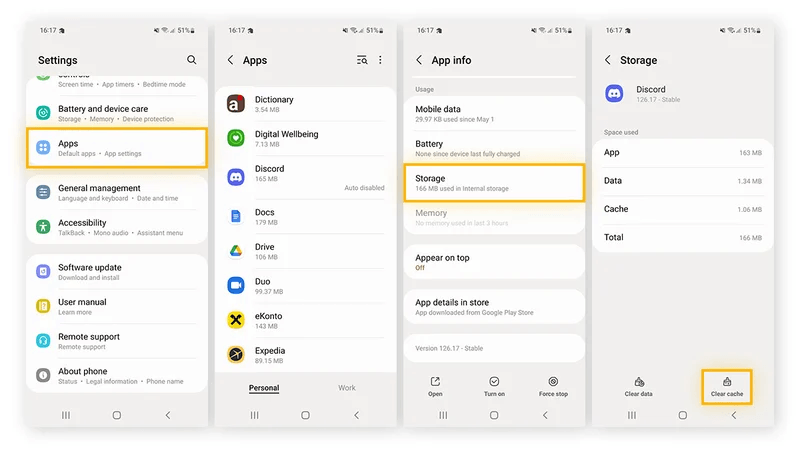
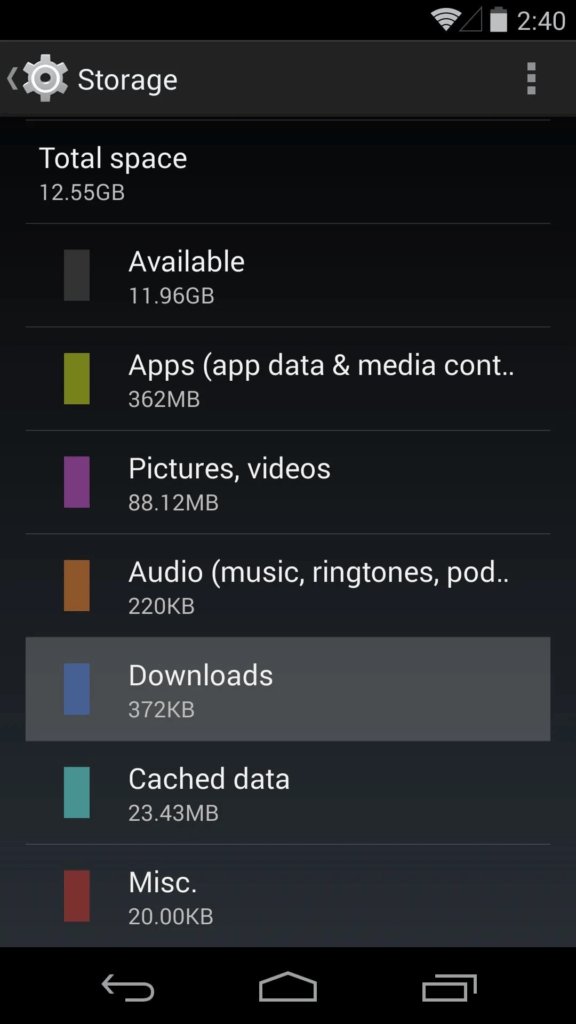
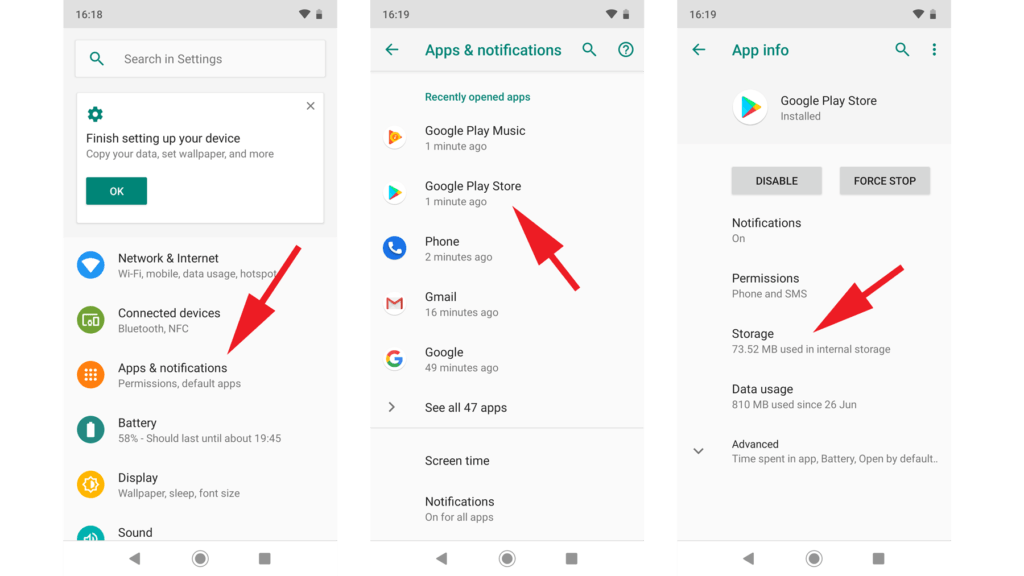
Many apps store cookie-like data internally, especially apps that rely on web views.
How to clear app cookies safely
- Open Settings on your phone
- Go to Apps
- Select the app
- Tap Storage and cache
- Tap Clear cache first
Clearing cache is usually sufficient and does not log you out.
When to clear app data
Use Clear data only if:
- The app fails to open
- Login issues persist
- Cache clearing does not help
Be aware that Clear data resets the app completely.
System-level cookie clearing: what to avoid
Android does not provide a single “clear all cookies” switch at the system level for good reason. System cleaners and third-party apps often:
- Remove useful data indiscriminately
- Force repeated logins
- Cause background services to misbehave
Manual clearing through browser and app settings is safer and more predictable.
Privacy impact of clearing cookies
Clearing cookies improves privacy in several ways:
- Removes tracking identifiers
- Breaks persistent ad profiling
- Resets cross-site tracking
However, it also:
- Logs you out of websites
- Resets site preferences
- Removes saved sessions
A balanced approach—clearing cookies periodically rather than constantly—offers the best experience.
How often should cookies be cleared
There is no universal schedule, but practical guidance includes:
- Once every few months for general maintenance
- Immediately when sites behave incorrectly
- Before handing your phone to someone else
- After using public or shared Wi-Fi networks
Frequent clearing is rarely necessary for everyday users.
Troubleshooting after clearing cookies
If something breaks after clearing cookies:
- Reopen the browser and sign in again
- Check site permissions (location, camera, pop-ups)
- Restart the app or browser
Most issues resolve quickly once sessions are re-established.
Disclaimer
This article is for informational purposes only. Steps and menu names may vary slightly depending on device manufacturer, Android version, and app updates. Always review settings carefully before deleting data.