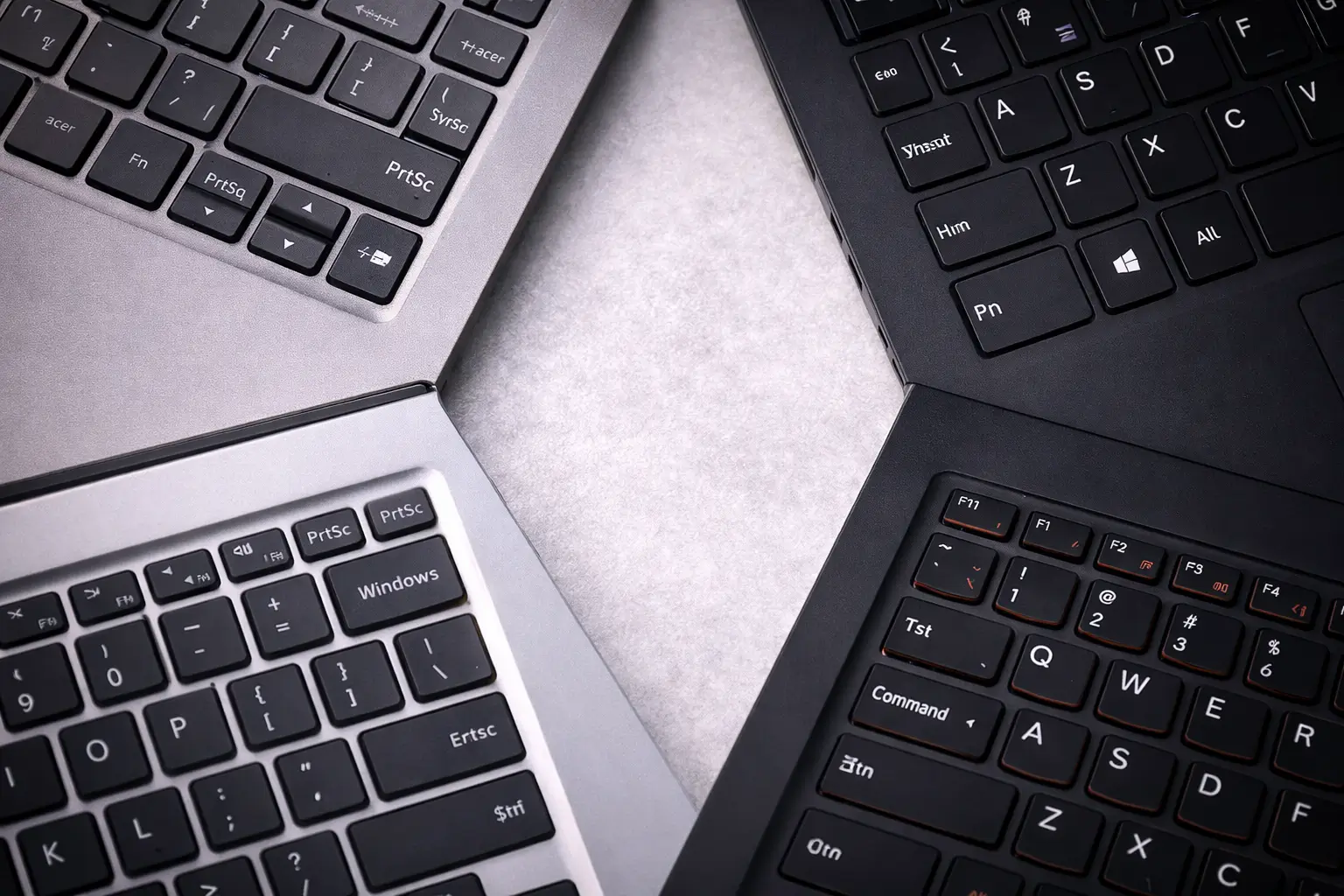
Universal Screenshot Methods That Work on Most Laptops
Before brand-specific steps, these methods apply broadly depending on your operating system.
Windows Laptops (All Brands)
- PrtSc: Copies the full screen to clipboard
- Alt + PrtSc: Copies the active window
- Windows + PrtSc: Saves full screen automatically
- Windows + Shift + S: Opens Snipping Tool (select area, window, or full screen)
macOS Laptops
- Command + Shift + 3: Full screen
- Command + Shift + 4: Selected area
- Command + Shift + 5: Screenshot toolbar (screen, window, recording)
These shortcuts remain consistent across brands using the same OS.
How to Take Screenshot on Dell Laptop
Most Dell laptops run Windows.
Common methods
- PrtSc or Fn + PrtSc → Copies entire screen
- Windows + PrtSc → Saves screenshot automatically
- Windows + Shift + S → Select area or window
Where screenshots are saved
Pictures > Screenshots(when using Windows + PrtSc)- Clipboard (paste into Paint, Word, or email)
How to Take Screenshot on HP Laptop
HP laptops often require the Fn key.
Working shortcuts
- Fn + PrtSc → Copies full screen
- Windows + Fn + PrtSc → Saves automatically
- Windows + Shift + S → Snipping Tool
Tip
On compact HP keyboards, Print Screen may be shared with another key, making Fn mandatory.
How to Take Screenshot on Lenovo Laptop
Lenovo laptops support both Windows shortcuts and Lenovo utilities.
Standard shortcuts
- PrtSc / Fn + PrtSc → Full screen
- Alt + PrtSc → Active window
- Windows + Shift + S → Snipping Tool
Lenovo Vantage
Some models include screenshot options inside Lenovo Vantage, but keyboard shortcuts are faster.
How to Take Screenshot on Asus Laptop
Asus laptops follow standard Windows behavior with slight keyboard variations.
Use these
- Fn + PrtSc → Copies screen
- Windows + PrtSc → Saves screenshot
- Windows + Shift + S → Custom capture
Common issue
If PrtSc doesn’t work alone, always try it with Fn.
How to Take Screenshot on Acer Laptop
Acer laptops rely heavily on function-key combinations.
Recommended methods
- Fn + PrtSc → Clipboard
- Windows + PrtSc → Auto-save
- Windows + Shift + S → Snipping Tool
Saved location
Pictures > Screenshots(auto-saved captures)
How to Take Screenshot on Apple MacBook
MacBooks use macOS shortcuts, not Print Screen.
Most used options
- Command + Shift + 3 → Full screen
- Command + Shift + 4 → Selected area
- Command + Shift + 5 → Screenshot menu
Where screenshots go
- Desktop by default
- Location can be changed from the screenshot toolbar
How to Take Screenshot on Microsoft Surface Laptop
Surface laptops run Windows but lack a traditional PrtSc key on some models.
Use these
- Fn + Spacebar → Screenshot
- Windows + Shift + S → Snipping Tool
- Windows + Volume Down + Power (tablet mode)
Chromebook Screenshot Methods (If Applicable)
Some laptops run ChromeOS instead of Windows.
Chromebook shortcuts
- Ctrl + Show Windows → Full screen
- Ctrl + Shift + Show Windows → Partial screen
Screenshots are saved automatically in the Downloads folder.
Where Screenshots Are Saved by Default
- Windows: Pictures > Screenshots (auto-save shortcuts)
- macOS: Desktop
- Clipboard captures: Must be pasted manually
- Chromebook: Downloads
When Screenshot Shortcuts Don’t Work
If screenshots fail:
- Check if Fn Lock is enabled
- Use Windows + Shift + S as a fallback
- Ensure keyboard drivers are updated
- Try the on-screen Snipping Tool or Screenshot toolbar