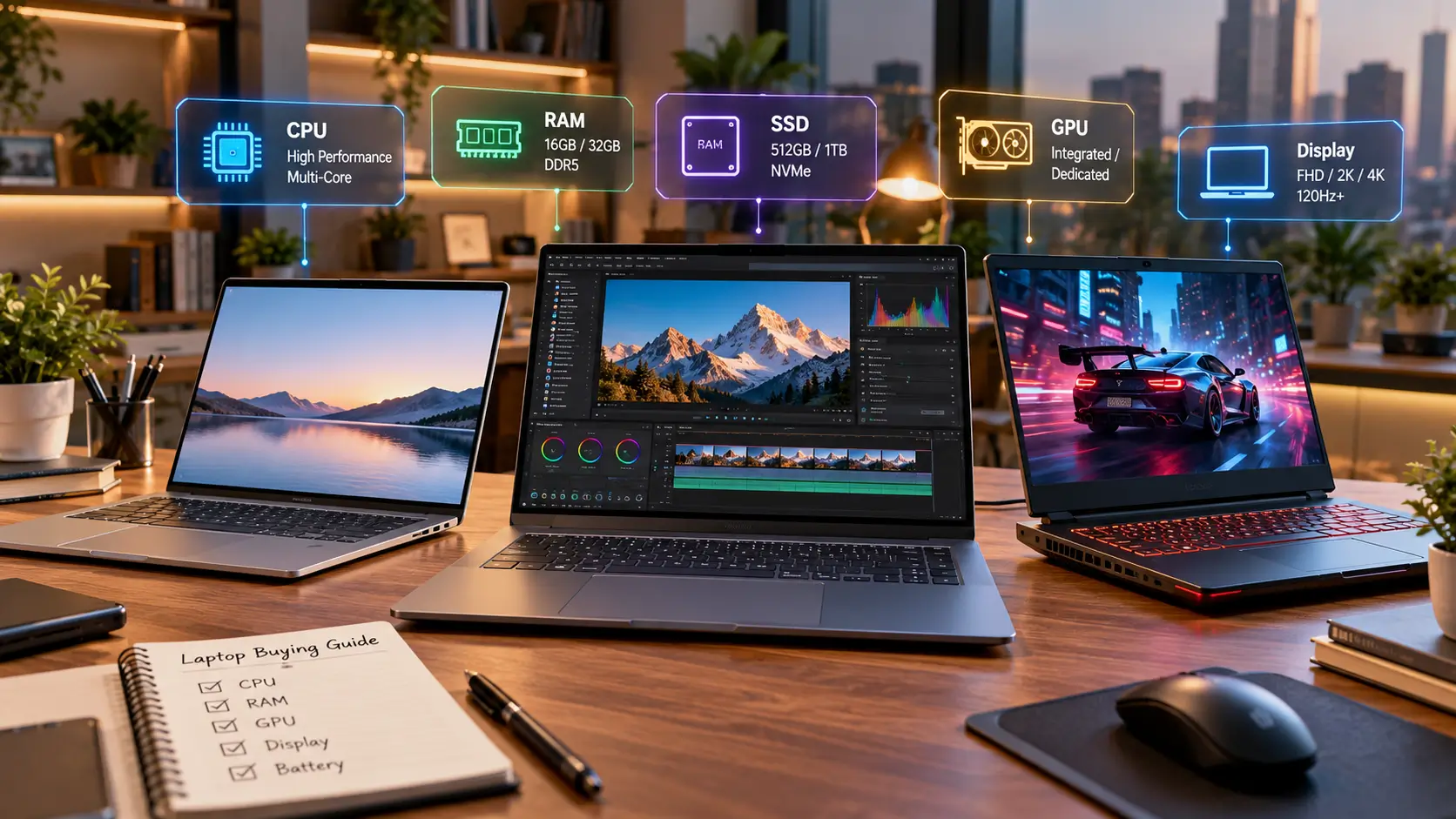
If you are searching for the best laptop configuration, there is one important thing to understand first: there is no single specification that is ideal for everyone.
A student using Chrome, Microsoft Office and online classes does not need the same hardware as a programmer running virtual machines. A video editor needs more RAM and storage, while a gamer needs to put much more of the budget into the GPU.
For most people buying a new Windows laptop in 2026, a sensible starting point is 16GB RAM, a 512GB NVMe SSD, a modern mid-range processor and a good Full HD-or-better display. But that is only the starting point.
The right configuration depends on what you actually do with the laptop.
This guide explains what to look for in the CPU, RAM, SSD, GPU, display, battery, ports and upgradeability—and then turns those specifications into practical configurations for students, office users, programmers, creators and gamers.
Quick answer: What is the best laptop configuration?
For a typical student, professional or home user, this is a strong general-purpose target in 2026:
| Component | Recommended configuration |
|---|---|
| CPU | Modern Intel Core 5/Core Ultra 5, AMD Ryzen 5/Ryzen AI 5 or comparable Apple/Qualcomm platform |
| RAM | 16GB |
| Storage | 512GB NVMe SSD |
| GPU | Integrated graphics for normal work; dedicated GPU only when your workload requires it |
| Display | 14–16 inches, preferably 1920×1200 or better |
| Panel | Good IPS or OLED |
| Battery | Prioritise efficient platforms and realistic battery testing |
| Wi-Fi | Wi-Fi 6/6E or newer where available |
| Ports | USB-C plus the ports your accessories actually require |
| OS | Windows 11, macOS or another platform according to software needs |
| Upgradeability | Prefer upgradeable RAM/storage where practical, or buy enough memory from the beginning |
The important part is not to buy these specifications blindly. A gaming laptop, coding machine and travel laptop can have completely different priorities.
What matters most when choosing a laptop?
A useful way to evaluate a laptop is to think about it in this order:
- Your workload
- Processor performance and efficiency
- RAM capacity
- GPU requirement
- Storage capacity
- Display quality
- Battery and thermals
- Weight and build
- Ports and connectivity
- Upgradeability and serviceability
The biggest mistake is starting with the processor name.
A Core i7, Ryzen 7 or “AI PC” badge does not automatically tell you whether the complete laptop is appropriate for your needs.
Two laptops with similar processor branding can have very different cooling systems, power limits, displays, RAM configurations and battery behaviour.
1. How much RAM should a laptop have?
For a new laptop in 2026, 16GB is the most sensible mainstream target.
That does not mean 8GB is unusable. It means 16GB gives you substantially more headroom for multitasking and makes more sense if you expect to keep the laptop for several years.
Microsoft’s official Windows 11 minimum requirement is only 4GB of RAM, but that is a compatibility floor—not a sensible specification for buying a modern productivity laptop.
8GB RAM
8GB can still be appropriate for:
- Basic browsing
- Word processing
- Streaming
- Simple schoolwork
- Light cloud-based applications
However, be careful with laptops that have 8GB soldered RAM with no upgrade option.
If the price difference to 16GB is reasonable, 16GB is usually the more sensible long-term configuration.
16GB RAM
For most people, this is the sweet spot.
It is suitable for:
- Students
- Office work
- Web browsing with many tabs
- Programming
- Microsoft Office
- Online classes
- Freelancing
- Light photo editing
- General multitasking
32GB RAM
Move to 32GB if you regularly use:
- Large Photoshop projects
- Video editing
- 3D applications
- Virtual machines
- Large development environments
- Heavy multitasking
- Local AI workloads
- Engineering or scientific applications
64GB or more
This is mainly for specialist workloads.
Examples include:
- Professional video production
- 3D rendering
- Large software development environments
- Multiple virtual machines
- Professional AI workloads
- Engineering simulations
- Large datasets
Buying 64GB simply because the number sounds better is unnecessary for most consumers.
2. Is 512GB SSD enough?
For most buyers, 512GB is the practical starting point.
Windows, applications, updates and personal files gradually consume storage, so a 256GB drive can become restrictive much faster than a specification sheet suggests.
Microsoft’s own laptop buying guidance currently describes PC storage options from 256GB through 1TB and beyond, depending on how much content the user stores locally.
256GB SSD
Suitable for:
- Light users
- Cloud-first users
- Basic office work
- Web browsing
- Users who regularly move files to external or cloud storage
It is less attractive if you plan to keep the laptop for many years.
512GB SSD
A strong general-purpose choice for:
- Students
- Office users
- Programmers
- Freelancers
- Everyday users
1TB SSD
Consider 1TB if you:
- Install many games
- Edit video
- Store large photo libraries
- Work with large datasets
- Keep lots of media offline
- Want more storage headroom
2TB or more
This is mainly justified by professional workloads, large game libraries or large local media collections.
SSD type matters
Prefer an NVMe SSD in a modern laptop.
The important practical distinction is that you should not select a laptop merely because it says “SSD.” Check the actual drive type and capacity.
3. Which processor is best for a laptop?
There is no universal “best processor.”
Instead, look for a processor appropriate to the laptop’s workload and thermal design.
In the current market, buyers will encounter several major platforms, including:
- Intel Core and Core Ultra
- AMD Ryzen and Ryzen AI
- Qualcomm Snapdragon X
- Apple silicon
Microsoft’s current Copilot+ PC requirements include compatible AMD Ryzen AI 300/400, Intel Core Ultra 200V/300V and Snapdragon X platforms with an NPU capable of at least 40 TOPS, alongside 16GB RAM and 256GB storage.
That distinction is important because AI-PC branding is not the same thing as general performance.
For everyday users
Look for a modern mid-range processor such as:
- Intel Core 5 / Core Ultra 5-class
- AMD Ryzen 5 / Ryzen AI 5-class
- Comparable Snapdragon X systems
- Apple M-series systems
The exact processor model matters more than the number after the brand.
For demanding professional work
Move toward:
- Higher-tier Core Ultra/Core processors
- Higher-tier Ryzen/Ryzen AI
- Apple Pro-class silicon
- Snapdragon X high-end systems where your software is compatible
Don’t compare processors by name alone
A common mistake is:
Core i7 > Core i5 > Core i3
That is not a reliable way to compare laptops across generations and power classes.
A newer efficient processor and an older high-power processor can have very different characteristics.
Always compare the specific processor model, not just the badge.
4. Do you need an AI laptop?
Not necessarily.
AI PCs have become an important part of the laptop market, but you should buy an NPU because it is useful for your workflow—not simply because the laptop has an “AI” sticker.
Microsoft defines Copilot+ PCs around NPUs capable of at least 40 TOPS, with 16GB RAM and at least 256GB of storage.
AMD’s current Ryzen AI portfolio includes processors with NPUs reaching up to 50 TOPS, while Qualcomm’s current Snapdragon X2 platforms go higher in some configurations.
An NPU can matter for:
- On-device AI features
- AI-assisted productivity
- Video conferencing effects
- Some image-generation features
- Local AI workloads
- Certain Windows AI features
But an NPU does not automatically replace a dedicated GPU.
For serious 3D rendering, many games, CUDA-dependent workflows or GPU-heavy video applications, the discrete GPU remains a fundamentally different component.
5. Do you need a dedicated graphics card?
For normal productivity, no.
Integrated graphics are sufficient for:
- Office work
- Browsing
- Streaming
- Online classes
- Programming
- General productivity
- Light photo editing
A dedicated GPU becomes important when your workload specifically needs graphics performance.
Dedicated GPU makes sense for:
- Modern gaming
- 3D rendering
- Professional video editing
- 3D modelling
- CAD workloads
- GPU computing
- Some AI workloads
NVIDIA’s current laptop RTX 50-series includes RTX 5050, 5060, 5070, 5070 Ti, 5080 and 5090 laptop GPUs. The listed memory configurations and power ranges vary considerably between models.
That leads to one of the most important laptop-buying lessons:
The GPU name is not enough.
An RTX 5060 laptop is not necessarily equivalent to every other RTX 5060 laptop.
Cooling and GPU power limits matter.
When comparing gaming laptops, check:
- GPU model
- GPU memory
- Maximum graphics power/TGP
- Cooling system
- CPU
- Display resolution
- RAM
- RAM upgradeability
Do not buy a gaming laptop solely because an RTX badge appears in the specification.
6. Best laptop configuration for gaming
Gaming changes the priorities.
A reasonable gaming-oriented target in 2026 is:
| Component | Gaming target |
|---|---|
| CPU | Modern high-performance Core/Core Ultra or Ryzen-class processor |
| RAM | 16GB minimum target; 32GB for heavier workloads |
| Storage | 1TB NVMe SSD preferred |
| GPU | Dedicated RTX-class GPU |
| Display | 1080p/1600p depending on GPU |
| Refresh rate | 120Hz+ |
| Cooling | High priority |
| Power | Check GPU TGP |
| Upgradeability | Prefer accessible RAM/SSD |
For gaming, it can be better to spend less on a premium CPU and more on the GPU if the processor is already strong enough for the games you play.
7. Best laptop configuration for coding and programming
Programming does not automatically require a gaming laptop.
For most developers, a balanced configuration is more useful:
| Component | Coding recommendation |
|---|---|
| CPU | Modern Core 5/Core Ultra 5 or Ryzen 5/Ryzen AI 5-class and above |
| RAM | 16GB minimum target |
| Heavy development | 32GB preferred |
| Storage | 512GB SSD |
| Heavy projects | 1TB SSD |
| GPU | Integrated graphics usually sufficient |
| Display | 1920×1200 or better |
| Screen size | 14–16 inches |
| Ports | USB-C, USB-A and external-display support |
| Battery | High priority |
If you use Docker containers, Android Studio, virtual machines, local databases or multiple IDEs simultaneously, 32GB becomes much more attractive.
For programming, RAM and keyboard quality can matter more than a dedicated GPU.
8. Best laptop configuration for students
Most students do not need a powerful gaming laptop.
A practical student configuration is:
- Modern mid-range processor
- 16GB RAM
- 512GB SSD
- Full HD or 1920×1200 display
- Good keyboard
- Good battery life
- Reasonable weight
- USB-C connectivity
If the student studies engineering, architecture, computer science, design or another GPU-intensive field, the requirements can change.
For example, a student working with CAD, 3D rendering or machine-learning workloads may need a dedicated GPU.
The course requirements should determine that upgrade—not marketing.
9. Best laptop configuration for office work
For documents, spreadsheets, browsing, video calls and business applications, you do not need extreme hardware.
A sensible configuration is:
16GB RAM + 512GB SSD + modern efficient processor + good display + strong battery life.
In fact, an expensive processor paired with a poor display, weak keyboard and mediocre battery may be a worse work laptop than a less powerful machine with better overall design.
For office users, prioritise:
- Keyboard
- Display
- Battery
- RAM
- Processor
- Weight
- Ports
- Webcam and microphones
10. Best laptop configuration for video editing
Video editing requires a different balance.
A sensible starting point for serious editing is:
- 32GB RAM
- 1TB SSD
- Powerful modern CPU
- Dedicated GPU where the software benefits from it
- Colour-accurate display
- Good cooling
For professional workloads, consider:
- 64GB RAM
- 2TB or larger SSD
- Higher-end GPU
- Larger or external colour-accurate display
Storage speed and capacity become particularly important because video projects can consume hundreds of gigabytes surprisingly quickly.
11. What display should a laptop have?
The display is one of the most underestimated specifications.
A laptop can have an excellent processor and still be unpleasant to use if its screen is poor.
Resolution
For most new laptops:
- 1920×1080: acceptable budget baseline
- 1920×1200: excellent productivity target
- 2560×1600 or similar: useful for premium laptops
- 4K: mainly for specialised creator or premium workloads
A 16:10 1920×1200 display can be particularly useful for documents, web pages and coding because it provides more vertical workspace than 16:9 Full HD.
IPS vs OLED
IPS
Advantages:
- Good for productivity
- Generally predictable
- Often better suited to long office sessions
- Usually available across more price points
OLED
Advantages:
- Excellent contrast
- Deep blacks
- Strong colours
- Excellent for entertainment and many creative applications
But don’t choose OLED solely because it sounds premium.
Also check:
- Brightness
- Colour coverage
- Refresh rate
- Resolution
- Response time
- Reflections
- Power consumption
Apple’s current M5 MacBook Air, for example, uses a 500-nit Liquid Retina display and starts at 16GB unified memory and 512GB storage, illustrating how 16GB/512GB has become a common starting point even in premium mainstream laptops.
12. How much battery life should you look for?
Do not judge battery life by battery capacity alone.
A large battery does not guarantee long runtime.
Battery life depends on:
- Processor efficiency
- Display
- Brightness
- Battery capacity
- Software
- Cooling
- Background applications
- Wireless connectivity
- Workload
For a student or professional who travels frequently, battery life can be more important than upgrading from a mid-range CPU to a high-end CPU.
Also remember that manufacturers’ battery figures are normally based on specific test conditions. Your real-world results will vary.
13. Check laptop upgradeability before buying
This is one of the most important things many buyers overlook.
Before buying, determine:
- Is RAM soldered?
- Can RAM be upgraded?
- Is there an additional SSD slot?
- Can the existing SSD be replaced?
- Is the Wi-Fi module replaceable?
- How difficult is servicing?
If RAM is soldered, you cannot assume that you will upgrade from 16GB to 32GB later.
This changes the buying decision.
For example:
16GB soldered today may be better than 8GB soldered with a slightly faster processor.
Similarly, a laptop with one accessible M.2 slot can be much easier to expand later than a machine with permanently fixed storage.
14. Don’t ignore ports
Before buying, think about what you actually connect.
A good work laptop may need:
- USB-C
- USB-A
- HDMI
- Headphone jack
- SD/microSD reader
- DisplayPort over USB-C
- Thunderbolt or USB4, depending on your requirements
If you use external monitors, docks, cameras, storage drives or wired networking, ports become much more important.
A very thin laptop with only two USB-C ports may be excellent for one user and frustrating for another.
15. Windows, macOS or Snapdragon Windows?
The operating system should be part of the configuration decision.
Windows
Choose Windows when you need:
- Broad application compatibility
- Gaming
- Business software
- Engineering applications
- Large hardware choice
- Flexible configuration options
macOS
MacBooks can make sense for:
- Apple ecosystem users
- Developers who prefer macOS
- Creative workflows
- Users prioritising battery life and portability
Apple’s current M5 MacBook Air offers 16GB unified memory as the base configuration and can be configured to 24GB or 32GB, with storage starting at 512GB.
Snapdragon Windows
Snapdragon-based Windows laptops can be attractive for users prioritising:
- Battery efficiency
- Thin-and-light designs
- On-device AI
- Connected productivity
However, software compatibility should be checked before buying, particularly for specialised applications, older software and some development or gaming workflows.
Qualcomm currently lists Snapdragon X platforms with dedicated NPUs, while its newer X2 platforms reach substantially higher NPU performance.
16. Best laptop configuration by user type
Here is the simpler decision framework:
| User | CPU class | RAM | Storage | GPU | Display |
|---|---|---|---|---|---|
| Basic home user | Entry/mid-range modern CPU | 8–16GB | 256–512GB | Integrated | FHD+ |
| Student | Modern mid-range CPU | 16GB | 512GB | Integrated | FHD+/1920×1200 |
| Office professional | Core 5/Ultra 5 or Ryzen 5-class | 16GB | 512GB | Integrated | 1920×1200 preferred |
| Programmer | Modern mid-range+ CPU | 16–32GB | 512GB–1TB | Usually integrated | 1920×1200+ |
| Heavy developer | Higher-performance CPU | 32GB+ | 1TB+ | Depends on workload | 1920×1200+ |
| Photo editor | Mid/high CPU | 16–32GB | 1TB | Integrated/dedicated | Colour-accurate |
| Video editor | High-performance CPU | 32GB+ | 1TB+ | Dedicated preferred | Colour-accurate |
| Gamer | High-performance CPU | 16–32GB | 1TB | Dedicated GPU | High refresh rate |
| 3D/CAD | High-performance CPU | 32GB+ | 1TB+ | Dedicated GPU | High-quality display |
| Heavy AI/local compute | High-performance CPU | 32GB+ | 1TB+ | Often dedicated GPU | Depends on workload |
These are buying targets, not rigid requirements.
17. The configuration I would start with for most people
If you are buying a laptop in India and have not yet identified a specialised workload, start here:
General-purpose configuration
Modern mid-range processor
16GB RAM
512GB NVMe SSD
14–16-inch 1920×1200 or better display
Integrated graphics
Good battery life
USB-C + USB-A
Upgradeable RAM/SSD where possible
This is the configuration that makes the most sense for a large proportion of students, professionals and home users.
But there is an important qualification:
Do not sacrifice the display, keyboard, battery or build quality merely to upgrade the processor by one tier.
18. When should you spend more?
Spend more on the specification that removes your actual bottleneck.
Spend more on RAM when:
- You multitask heavily
- You use virtual machines
- You edit large projects
- You run development environments
- You work with large datasets
Spend more on the GPU when:
- You game
- You render 3D
- Your creative software benefits from GPU acceleration
- Your AI workload is GPU-intensive
Spend more on storage when:
- You store video
- You install many games
- You maintain large local datasets
- You work with large project files
Spend more on the display when:
- You edit photographs
- You edit video
- You read/work for many hours
- Colour accuracy matters
Spend more on battery and portability when:
- You travel frequently
- You work away from a power socket
- You attend college or meetings all day
This approach is much better than simply buying the laptop with the largest specification numbers.
19. Laptop configuration mistakes to avoid
Mistake 1: Buying the biggest processor you can afford
A powerful CPU cannot compensate for a poor screen, inadequate RAM or weak battery.
Mistake 2: Buying 8GB because it is cheaper
If the RAM cannot be upgraded, this can become a long-term limitation.
Mistake 3: Assuming all RTX GPUs perform identically
Laptop GPU power limits and cooling can materially affect performance.
Mistake 4: Choosing a laptop only by processor generation
Generation is important, but the exact processor model and power class matter too.
Mistake 5: Buying 256GB because the laptop is cheap
You may quickly run out of usable space.
Mistake 6: Assuming OLED automatically means better
OLED has real strengths, but brightness, colour accuracy, battery behaviour and panel quality still need to be checked.
Mistake 7: Ignoring upgradeability
A cheaper laptop that cannot be upgraded may have a shorter useful life.
Mistake 8: Treating AI branding as a buying requirement
An NPU can be useful, but it should be evaluated according to the software and features you actually use.
Mistake 9: Ignoring software compatibility
A technically impressive laptop is not useful if the software you depend on does not run properly on its platform.
20. A simple laptop buying checklist
Before paying for any laptop, verify these specifications from the exact model number:
- Exact CPU model
- CPU generation/platform
- RAM capacity
- RAM type
- Whether RAM is soldered
- SSD capacity
- SSD type
- Number of SSD slots
- GPU model
- GPU memory
- GPU power/TGP for gaming laptops
- Display resolution
- Display panel type
- Display brightness
- Colour coverage if relevant
- Refresh rate
- Battery capacity
- Realistic battery expectations
- Weight
- USB-C capabilities
- USB-A availability
- HDMI/display output
- Wi-Fi standard
- Webcam quality
- Keyboard
- Warranty
- Service availability
- Operating system
- Exact RAM/storage configuration
- Final payable price
That last point matters more than it sounds.
Laptop families often contain multiple configurations with the same marketing name.
Always compare the exact model number.
Bottom line
For most Indian buyers in 2026, the safest starting point is 16GB RAM + 512GB NVMe SSD + a modern mid-range processor + a good 1920×1200-or-better display.
From there, customise the configuration around your workload.
Choose 32GB RAM for serious multitasking, development and creator workloads. Choose 1TB or more if you store large files or games. Choose a dedicated GPU for gaming, 3D work and other GPU-heavy applications. Prioritise battery life and weight if you travel frequently.
And if you remember only one thing, remember this:
The best laptop configuration is not the one with the biggest numbers. It is the configuration that puts your money into the components your workload will actually use.
FAQ
Is 16GB RAM enough for a laptop in 2026?
Yes, 16GB is a sensible target for most students, office users and general-purpose buyers. Heavy video editing, virtual machines, professional development and other demanding workloads can justify 32GB or more.
Is 512GB SSD enough for a laptop?
For most students and professionals, 512GB is a good starting point. Choose 1TB or more if you regularly store games, videos, photographs, large datasets or other sizeable files.
Is 8GB RAM enough for a laptop?
It can be sufficient for basic browsing, documents and light workloads, but 16GB provides more multitasking headroom. Be particularly careful if the 8GB RAM is soldered and cannot be upgraded.
Do I need a dedicated GPU?
Not unless your workload needs one. Office work, browsing, programming and normal student use can generally use integrated graphics. Gaming, 3D work and many GPU-intensive creative or AI workloads benefit from a dedicated GPU.
Is Core i7 better than Core i5?
Not automatically. Processor generation, architecture, power class and the exact model matter. A newer or higher-efficiency chip can have a very different performance and battery profile from an older processor with a higher-sounding badge.
Is an AI laptop worth buying?
It can be, especially if you use on-device AI features. But an NPU should not be treated as a substitute for CPU or GPU performance. Microsoft currently defines Copilot+ PCs around 40+ TOPS NPU performance alongside specific memory, storage and Windows requirements.
Is OLED better than IPS on a laptop?
OLED generally offers excellent contrast and colour, but IPS can still be an excellent choice for productivity. Compare brightness, colour coverage, refresh rate, battery impact and the exact panel rather than buying solely based on the OLED label.
How much RAM is ideal for a gaming laptop?
16GB is a reasonable starting point for gaming, while 32GB provides additional headroom for heavier games, multitasking and other workloads. The GPU is generally the more important performance component once the CPU and RAM are adequate.