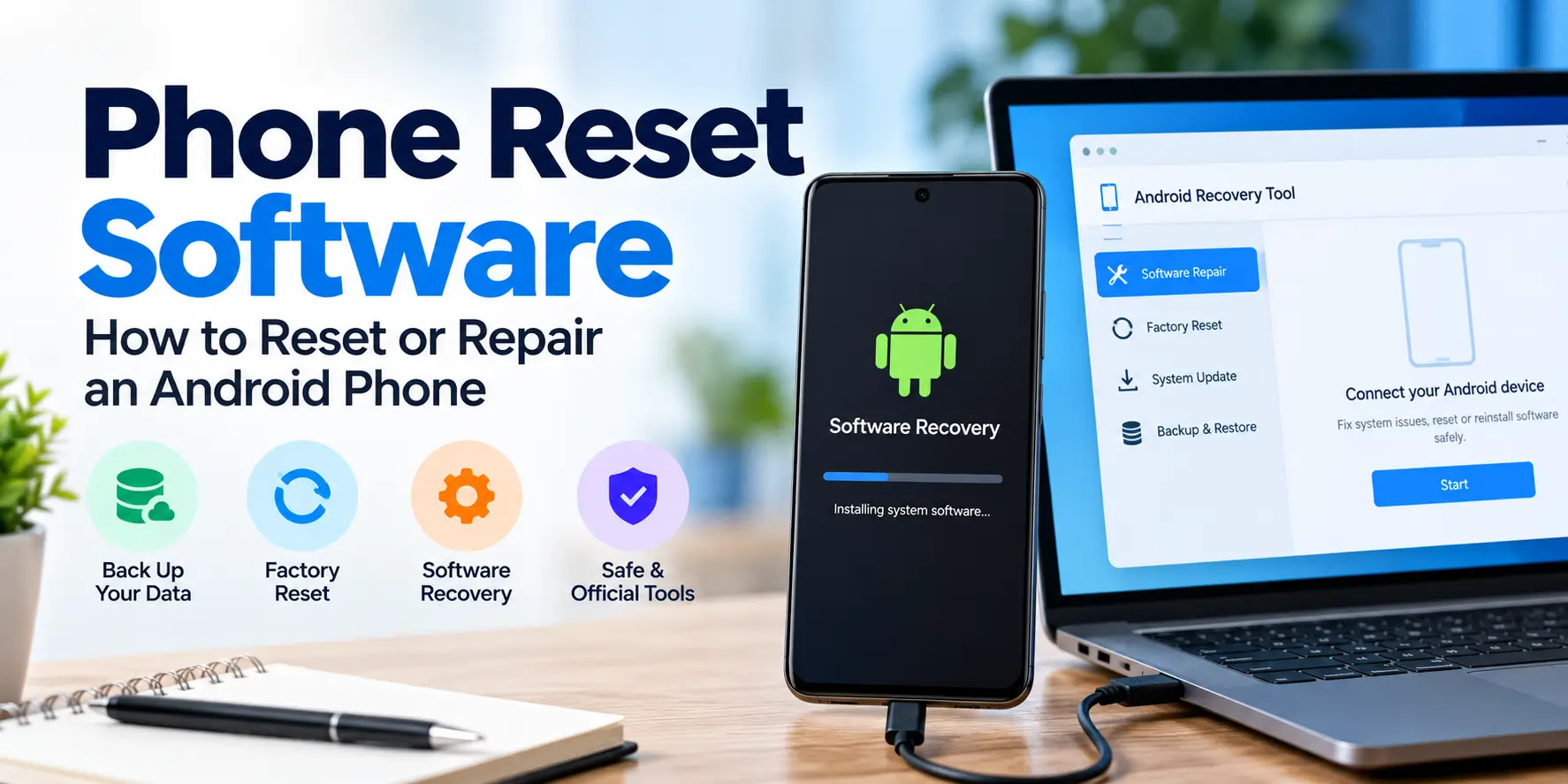
Phone reset software can help with certain smartphone problems, but the best solution depends on what is wrong with the device. A factory reset can erase personal data and restore default settings. Software recovery tools may help repair a damaged operating system, while account recovery is a separate process.
For most Android users, the safest starting point is the phone’s built-in reset option or the manufacturer’s official support instructions. Downloading a third-party program should be a considered decision, not the first step.
What is phone reset software?
Phone reset software refers to software or utilities used to restore a smartphone to its default state, erase its stored data, or help recover its operating system.
The term can describe several different tools:
- Factory reset tools: Erase personal data, accounts and settings from a device.
- Firmware recovery tools: Reinstall or repair compatible system software when a device has a software problem.
- Device-management tools: Help users back up, update, restore or manage their phones.
- Remote erase services: Allow an owner to erase a supported device remotely under specified conditions.
- Account recovery services: Help legitimate owners recover access to their accounts after forgetting credentials. These are not the same as reset tools.
A tool designed for one purpose may not work for another. Before choosing software, identify the problem you need to solve.
Best phone reset software and safe alternatives
For most users, official built-in options should come before third-party utilities. The following table compares the principal options without assuming that one tool supports every Android brand.
| Tool or method | Best suited for | Main limitation |
|---|---|---|
| Android factory reset in Settings | Erasing data or starting fresh | Deletes local data |
| Google Find Hub | Remotely erasing a supported, linked device | Requires the device and account to meet the service’s conditions |
| Google Pixel Update and Software Repair | Supported Pixel software recovery | Limited to compatible Pixel devices |
| OPPO’s built-in reset and official support | OPPO and ColorOS troubleshooting | Menu paths and options vary by model |
| Manufacturer-authorised service centre | Serious software faults or devices that will not boot | May require a service fee or proof of ownership |
| Third-party desktop reset utilities | Specific, documented compatibility cases | Support, safety, cost and results vary |
1. Android’s built-in factory reset
Best for: Owners who can still access their phone’s settings and want to erase their data or restore default settings.
Android provides a factory-reset option through Settings. The precise menu depends on the phone’s manufacturer and Android version.
Before using it, back up important photos, contacts, files and application data. Confirm that you know the Google Account credentials associated with the phone. After the reset, Android may require those credentials to verify the device.
Google recommends trying less destructive troubleshooting steps first when the goal is to fix a software problem rather than erase the phone.
Official guide: https://support.google.com/android/answer/6088915
2. Google Find Hub for remote erasure
Best for: Owners who need to erase a lost or inaccessible Android phone and have the required account and device settings configured.
Google’s device-finding service provides a remote erase option for supported devices. The device generally needs to be powered on, connected to a network, associated with the relevant Google Account and configured to meet the service’s requirements.
Remote erasure is not a way to recover files from an inaccessible phone. It deletes data, and recovering that information afterward depends on available backups.
Use Google’s official service: https://android.com/find
Before confirming an erase command, ensure you have selected the correct device. Remote erasure is a consequential action.
3. Google Pixel software recovery
Best for: Compatible Google Pixel phones that have software problems requiring more than a standard settings reset.
Google provides an Update and Software Repair tool for supported Pixel models. Depending on device compatibility and the available recovery option, it may help restore software without following the same process as a conventional factory reset.
Do not assume the tool supports every Android phone or every Pixel model. Check Google’s compatibility instructions before connecting a device.
Official resource: https://pixelrepair.withgoogle.com/
4. OPPO’s built-in reset options
Best for: OPPO users who need to troubleshoot ColorOS settings, persistent software issues or a phone that is running poorly.
OPPO’s support documentation describes several levels of reset. Depending on the software version, users may be able to reset network settings, restore system settings or erase all data.
These options have different consequences. A network reset is not equivalent to erasing the phone, and resetting system settings may preserve personal files.
For supported ColorOS versions, OPPO documents paths such as Settings → System & Updates → Back up & reset → Reset Phone. Older versions can use different menus.
Official support: https://support.oppo.com/
5. Authorised manufacturer service tools
Best for: Phones that repeatedly restart, cannot boot into Android, fail during software updates or show signs of a corrupted operating system.
A manufacturer-authorised service centre may be able to diagnose the problem and use service tools appropriate for the exact device.
This is often a better choice than downloading an unfamiliar firmware package. Installing incompatible firmware can cause further problems, and some repairs may erase user data.
Before handing over the phone, ask whether the repair will erase storage, whether data recovery is possible and whether proof of ownership is required.
How to choose the right reset method
The most useful question is not simply which software is best. It is what you want the software to accomplish.
| Your situation | Recommended starting point |
|---|---|
| The phone is slow but still works | Restart it, check storage and update apps before considering a reset |
| You want to sell your phone | Back up important information, remove personal accounts as appropriate, then perform a factory reset |
| You forgot your screen-lock PIN | Use the manufacturer’s official recovery guidance; be prepared for data loss |
| The phone is stuck restarting | Try manufacturer-recommended troubleshooting and seek software recovery support if needed |
| The phone was reset and requests the previous Google Account | Recover or sign in to the original account |
| You want to erase a lost phone | Use Google’s official remote-erase service if the device meets the requirements |
| The phone has a serious operating-system fault | Check official software-repair support or consult an authorised service centre |
This approach avoids paying for a tool when a built-in feature or account-recovery procedure may be sufficient.
How to reset an Android phone safely
If your phone works normally enough to open Settings, follow these steps.
Step 1: Back up your important data
Back up photos, contacts, documents and other important information. Check that your backup completed successfully rather than assuming everything has been saved.
Some applications store data separately and may require their own backup procedure.
Step 2: Check your Google Account
Confirm the Google Account associated with the phone and make sure you know its password. If you use a screen lock, keep the PIN or password available as well.
If you recently changed your Google Account password, Google’s guidance advises waiting 24 hours before performing a factory reset.
Step 3: Charge your phone
Google recommends charging the device to at least 70% and connecting it to a network in preparation for a factory reset. Make sure you can access a reliable internet connection for setup afterward.
Step 4: Find the factory-reset option
On many Android devices, the option is under Settings, followed by a section such as System, General management or Reset options. The exact route depends on the manufacturer and software version.
Read the final confirmation screen carefully. Make sure you understand what will be erased before proceeding.
Step 5: Reset and set up the phone
Confirm the reset only when you are ready. The phone will restart and guide you through its initial setup.
Connect to the internet and sign in with the required account. Restore the backup you made earlier and reinstall applications from trusted sources.
For device-specific instructions, use the official Android guide: https://support.google.com/android/answer/6088915
Can phone reset software reset a phone without losing data?
Not reliably in every situation.
A factory reset is specifically intended to erase data stored on the device. Some troubleshooting and system-settings options can fix particular problems without removing personal files, but they are not equivalent to a complete factory reset.
Software-repair tools may offer different recovery options, depending on the model and fault. Never assume that a program will preserve data simply because its website advertises a no-data-loss feature.
If the files are irreplaceable, stop before resetting or flashing the device. Ask the manufacturer or a reputable repair professional whether data-preserving recovery is possible.
What is the difference between a factory reset and firmware recovery?
A factory reset generally erases user data and returns the device’s settings to their default state. Firmware recovery addresses the system software itself and may involve reinstalling compatible software.
These procedures solve different problems.
For example, a phone with excessive background apps or misconfigured settings might benefit from troubleshooting or a factory reset. A phone that cannot boot because of a failed system update may need manufacturer-specific recovery.
Neither method guarantees that a hardware fault will be repaired. If a phone has a damaged battery, storage component or other physical defect, software alone may not solve the problem.
What about phone unlock and FRP bypass software?
Be cautious when a tool promises to remove every screen lock, bypass Google verification, preserve all data and support every phone model.
Android’s Factory Reset Protection is designed to help prevent unauthorised use after certain resets. If a phone asks for a previously associated Google Account during setup, the normal solution is to sign in with that account or recover access through Google’s official account-recovery process.
If you bought a second-hand phone, contact the previous owner to remove the device from their account through the proper process. If you are the legitimate owner and cannot recover the account, contact the manufacturer or an authorised service provider with proof of purchase.
A reset does not automatically remove account-based anti-theft protection. Avoid unverified utilities that ask you to disable security features, install unknown applications or share account credentials.
How to identify unsafe reset software
Before downloading a third-party phone utility, check the following:
- Official source: Is the software available through a verified developer or manufacturer website?
- Exact model support: Does the developer explicitly list your phone model and software version?
- Transparent pricing: Are the cost, trial restrictions and refund terms clear?
- Data handling: Does the provider explain what information the software accesses or uploads?
- Realistic claims: Does the product acknowledge limitations instead of promising universal, instant repairs?
- Security: Does the download require disabling antivirus protection or installing unknown applications?
- Independent evidence: Are there credible technical reviews that explain what the software actually does?
Treat demands for your Google password, unnecessary remote access or unexplained payment as warning signs.
What Indian users should know
For Indian smartphone owners, start with the official support site for the phone’s brand and the exact model sold in India. Firmware packages and repair procedures may differ between regional variants, even when device names appear similar.
Before paying for a reset utility or repair service, ask whether it supports your model, whether the procedure erases data and what happens if the repair fails.
If a phone was purchased second-hand, verify that it can be activated with your own account before completing the transaction whenever possible. A device that has been erased but remains linked to another person’s account can still be unusable.
Final verdict: Which phone reset software should you use?
For a normal factory reset, use the built-in Android settings. For a lost phone, consider Google’s official remote-erase service. For a supported Pixel software fault, check Google’s recovery tool. OPPO users should begin with the manufacturer’s reset guidance, while other brands should consult their own official support resources.
Third-party software may have a role in specific repair situations, but compatibility and data-loss risks must be evaluated individually.
The safest rule is simple: identify the fault, protect your data, and use the least destructive supported method that can solve the problem.
Frequently asked questions
1. What is the best free phone reset software?
For most Android users, the built-in factory-reset option is the best starting point because it does not require downloading a separate reset utility. Official recovery tools may be appropriate for particular devices and software problems.
2. Can I reset my Android phone using a computer?
Yes, in certain situations. Google provides a software-repair tool for compatible Pixel devices, and some manufacturers provide their own computer-based utilities. Support varies by model, so check the official instructions before connecting your phone.
3. Can I reset a phone without losing data?
A full factory reset is designed to erase local data. Try less destructive troubleshooting methods first, and make a backup before proceeding. Data-preserving recovery is not guaranteed.
4. Does phone reset software remove a forgotten screen lock?
Some recovery procedures may help restore access, but they can erase data and may trigger account verification. Use official recovery guidance rather than assuming a third-party program can remove every lock.
5. Can a factory reset remove Google FRP?
No, not reliably. Factory Reset Protection may require the Google Account previously associated with the device. Recover the account or contact the manufacturer if you are the legitimate owner.
6. Is phone reset software safe to download?
Official manufacturer tools are generally the preferred starting point. With third-party utilities, verify the developer, exact model compatibility, privacy practices and pricing. Avoid programs making universal unlock or no-data-loss promises without credible evidence.
7. Which reset method should I use for a phone stuck in a boot loop?
Start with the manufacturer’s official troubleshooting instructions. If the problem began after a failed update, compatible software recovery may be needed. A factory reset may erase data and should not be the automatic first step when files matter.
8. Do I need to pay for phone reset software?
Not necessarily. Built-in Android reset functions and Google’s official services cover many common needs. Paid tools should be considered only when they support your specific problem and offer a clear advantage over official options.