Moving photos from an iPhone to an Android phone is a problem-solving task, not a general comparison or awareness query. This guide explains the most secure and practical ways to transfer photos from iPhone to Android, with exact steps, limitations, and when to use each option.
What “Safely” Means When Transferring Photos
A safe photo transfer meets three conditions:
- No loss of image quality
- No exposure of personal data
- No permanent dependency on third-party apps
All methods below are evaluated against these criteria.
Method 1: Transfer Photos Using a USB Cable (Most Secure)
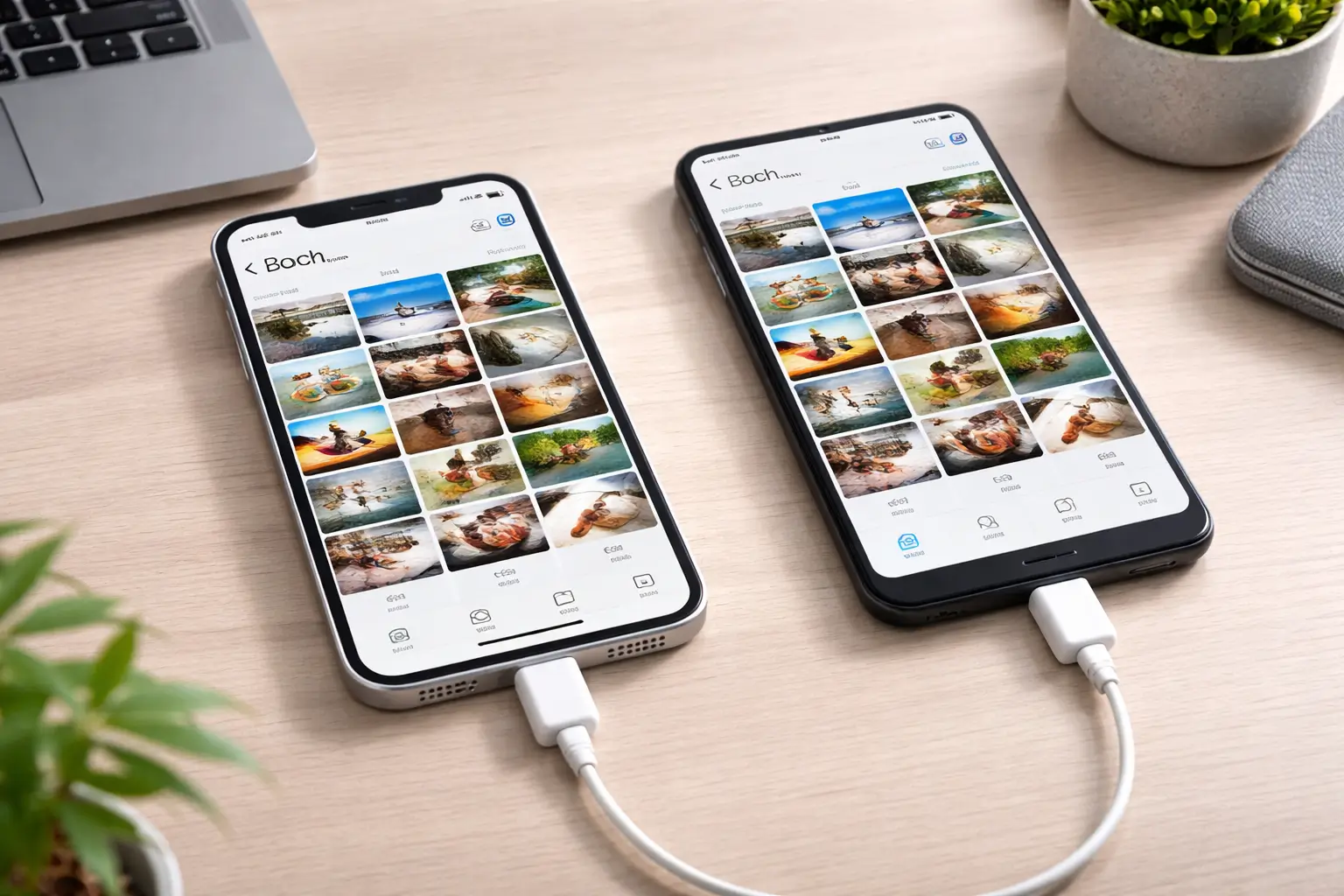
This is the safest and most reliable method because files move directly between devices without cloud syncing or third-party storage.
What You Need
- iPhone
- Android phone
- Lightning cable
- USB-C or USB-A adapter (if required)
Steps
- Connect the iPhone to the Android phone using the cable.
- Unlock the iPhone and tap Trust This Computer.
- On Android, select File Transfer / Import Photos.
- Choose photos to copy.
- Confirm transfer.
Why This Method Is Safe
- No internet required
- No cloud storage
- No account login
- Original image quality preserved
Limitations
- Slower for very large libraries
- Requires compatible cables
Best for: Full photo libraries and privacy-sensitive users.
Method 2: Use Google Photos (Reliable With Cloud Sync)
Google Photos is a practical option if you are already comfortable with cloud services.
Steps
- Install Google Photos on the iPhone.
- Sign in with your Google account.
- Enable photo backup.
- Install Google Photos on Android.
- Sign in with the same account.
Photos will appear automatically once syncing completes.
Safety Considerations
- Photos are stored in the cloud
- Requires stable internet
- Google account security is essential
Image Quality Notes
- “Original quality” uses cloud storage quota
- “Storage saver” compresses images
Best for: Ongoing cross-platform photo access.
Method 3: Transfer Photos Using a Computer (Controlled and Offline)
Using a PC or Mac allows manual file control and works without cloud services.
Steps
- Connect the iPhone to a computer.
- Import photos using Photos app (Mac) or File Explorer (Windows).
- Disconnect iPhone.
- Connect Android phone.
- Copy photos into the Android DCIM folder.
Why This Is Safe
- Offline transfer
- Full control over files
- No third-party access
Limitations
- Requires a computer
- Slightly longer process
Best for: Users who want maximum control.
Method 4: Share Photos Using Nearby Sharing or Wireless Apps
This method works for small batches, not full libraries.
Common Options
- Nearby Share (Android-side)
- Email (small files only)
- Secure messaging apps
Safety Notes
- Avoid unknown apps
- Check app permissions
- Disable access after transfer
Not recommended for large libraries or private photos.
Method 5: Move Photos During Android Setup (Switching Phones)
If you are switching phones, Android’s setup process supports photo transfer.
How It Works
- During Android setup, select Copy data from iPhone
- Connect devices with cable or Wi-Fi
- Choose photos only (optional)
Advantages
- Guided process
- Minimal user effort
Limitations
- Only available during first-time setup
- Less control over individual files
Best for: New Android phone users.
Which Method Is the Safest Overall?
| Method | Safety | Quality | Privacy |
|---|---|---|---|
| USB Cable | Very High | Original | Excellent |
| Computer Transfer | Very High | Original | Excellent |
| Google Photos | High | Configurable | Moderate |
| Wireless Apps | Medium | Variable | Lower |
| Setup Migration | High | Original | Good |
Safest choice: USB cable or computer transfer.
Common Mistakes to Avoid
Relying on unverified third-party apps
Forgetting to disable cloud backup after transfer
Using messaging apps for large photo sets
Compressing images unintentionally
When Photos Appear Missing on Android
If photos do not appear:
- Refresh Gallery app
- Check DCIM folder
- Restart the phone
- Ensure file permissions are enabled
Security and Privacy Tips
Log out of cloud apps after transfer
Remove device trust permissions
Avoid public Wi-Fi
Back up photos before starting
Platforms Involved
This process applies when moving photos from Apple iPhone devices to Android-based smartphones, regardless of brand.