If you are searching for the best PUBG settings, the most useful starting point is a balanced combination of high frame rate, responsive controls, moderate camera sensitivity and higher gyroscope sensitivity. There is no universal setting that makes every player instantly accurate, but a properly tuned setup can make aiming, tracking and recoil control much easier.
For Indian players, this guide focuses on BGMI, the India-specific version of the PUBG mobile experience.
Best BGMI Settings at a Glance
For most players, start with:
| Setting | Recommended Starting Point |
|---|---|
| Graphics | Smooth |
| Frame Rate | Highest stable option |
| Camera TPP No Scope | 115–130% |
| Camera FPP No Scope | 100–115% |
| Red Dot/Holographic | 50–60% |
| 2x Scope | 35–40% |
| 3x Scope | 25–30% |
| 4x Scope | 18–22% |
| 6x Scope | 10–15% |
| 8x Scope | 8–12% |
| Gyroscope | Always On, if comfortable |
| Red Dot Gyro | 250–300% |
| 2x Gyro | 210–250% |
| 3x Gyro | 170–210% |
| 4x Gyro | 140–180% |
| 6x Gyro | 80–100% |
| 8x Gyro | 50–70% |
These are starting ranges, not official BGMI recommendations. Current community guides similarly recommend relatively high gyro values and progressively lower sensitivity as scope magnification increases.
Best PUBG Graphics Settings for Smooth Gameplay
For competitive gameplay, frame-rate stability is usually more valuable than maximum visual quality.
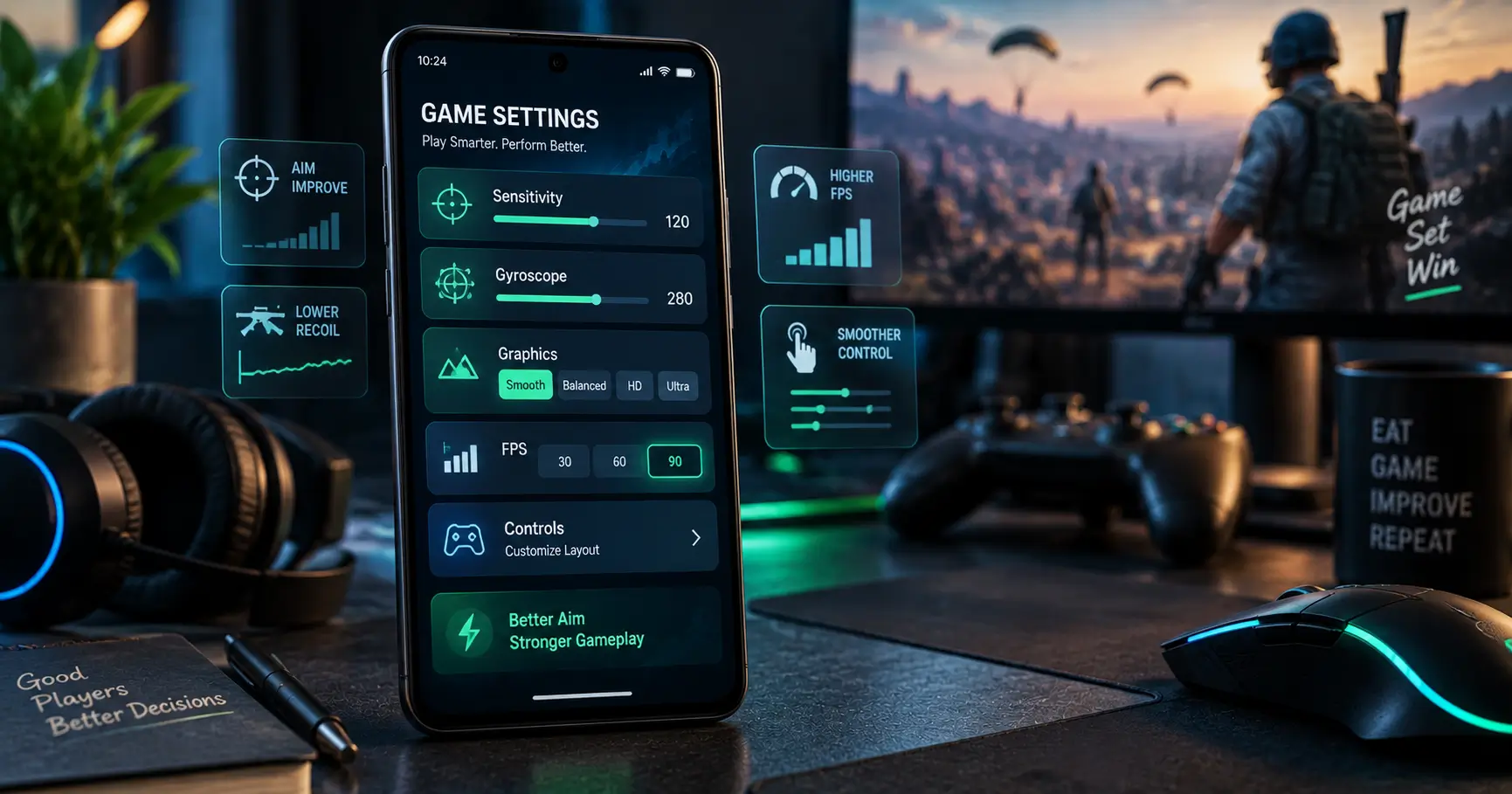
Start with Smooth graphics and select the highest frame-rate option your phone can maintain consistently. BGMI’s official guidance confirms that 90 FPS is available only on supported devices and that the option appears under Settings → Graphics & Audio → Smooth when supported.
A practical setup is:
- Graphics: Smooth
- Frame Rate: Highest stable option
- Anti-Aliasing: Off if you need additional performance
- Shadows: Low or Off where available
- Auto-adjust graphics: Off if it causes unexpected changes
- Style: Choose the one that gives you the clearest enemy visibility
A stable 60 FPS can be better than an unstable 90 FPS. Do not select a higher frame rate simply because your phone displays the option.
Best PUBG Sensitivity Settings for Aim
Camera sensitivity determines how quickly your view moves when you swipe the screen. Higher values help with fast close-range turns, while lower values can make long-range tracking easier.
A good starting profile is:
- TPP No Scope: 120%
- FPP No Scope: 105%
- Red Dot/Holographic: 55%
- 2x: 38%
- 3x: 28%
- 4x: 20%
- 6x: 12%
- 8x: 10%
If your crosshair repeatedly moves past enemies during close-range fights, reduce the relevant sensitivity slightly. If turning feels slow, increase it gradually.
Do not change every setting at once. Adjust one category, test it in Training Ground and then decide whether another change is necessary.
Best ADS Settings for Recoil Control
ADS sensitivity affects how your aim behaves while firing. A useful starting profile is:
- TPP No Scope: 110–120%
- FPP No Scope: 100–110%
- Red Dot: 50–60%
- 2x: 35–40%
- 3x: 25–30%
- 4x: 18–22%
- 6x: 10–15%
- 8x: 8–12%
If an automatic weapon consistently climbs while you spray, experiment with a small ADS adjustment rather than making a dramatic change.
Also remember that “zero recoil” is not a setting. Recoil control depends on weapon choice, attachments, sensitivity, FPS, touch input and player technique.
Best Gyroscope Settings
Gyroscope can be extremely useful for recoil control because it allows you to make small aiming adjustments by physically tilting the phone.
If you are new to gyro, Scope On can be easier to learn. Experienced gyro players may prefer Always On because it provides continuous movement control.
Try:
- TPP/FPP No Scope: 250–300%
- Red Dot: 250–300%
- 2x: 210–250%
- 3x: 170–210%
- 4x: 140–180%
- 6x: 80–100%
- 8x: 50–70%
The exact number depends heavily on how you hold the phone. Higher gyro values can feel extremely fast on one device and perfectly controllable on another.
PUBG Mobile has supported dedicated gyroscope sensitivity controls for ADS and allows players to customize these settings.
Best Control Settings for BGMI
Sensitivity alone will not fix uncomfortable controls.
For two-thumb players, keep the primary fire and movement buttons easy to reach without stretching your thumbs.
Three- and four-finger players can move the fire, scope, crouch and jump buttons to separate areas of the screen. The goal is to let you move, aim and fire simultaneously.
Useful settings to consider include:
- Enable Peek & Fire if it suits your play style.
- Use Quick Throw if you regularly use grenades.
- Adjust button size rather than relying only on default controls.
- Keep important buttons away from accidental-touch areas.
- Use a layout that you can reproduce consistently.
PUBG Mobile has long supported control and sensitivity sharing, while BGMI has also added extensive customization options over time.
How to Find Your Perfect PUBG Settings
The fastest approach is controlled testing.
Go to the Training Ground and test one weapon at a time. Start with the M416 or another familiar automatic weapon. Test red-dot sprays first, then move to 3x and 4x scopes.
Use this simple rule:
Aim overshoots → lower sensitivity.
Aim feels slow → increase sensitivity.
Recoil climbs → adjust ADS or gyro.
Aim feels inconsistent → check FPS and touch response before changing everything.
Give yourself several matches before judging a new configuration. Constantly switching sensitivity can make muscle memory harder to develop.
Final Verdict
The best PUBG settings for BGMI in 2026 are not necessarily the highest sensitivity values or a configuration copied from a professional player. A better approach is to start with Smooth graphics, the highest stable FPS, moderate camera and ADS sensitivity, and a relatively high gyro profile if you are comfortable using motion controls.
Most importantly, treat these numbers as a baseline. Your phone, screen size, FPS stability, grip and playing style should determine the final settings.
FAQ
What are the best PUBG settings for BGMI?
A strong starting setup is Smooth graphics, the highest stable FPS, moderate camera/ADS sensitivity and higher gyroscope sensitivity. Fine-tune the numbers in Training Ground rather than copying a configuration blindly.
What is the best sensitivity for PUBG headshots?
There is no single sensitivity that guarantees headshots. Start around 50–60% for Red Dot camera/ADS sensitivity and gradually adjust based on your tracking and recoil control.
Is gyro better for BGMI?
Gyro can make recoil control and small aim corrections easier, especially for experienced players. Beginners may need time to develop the required muscle memory.
What graphics settings are best for BGMI?
Smooth graphics with the highest stable frame rate is generally a good competitive starting point. BGMI officially supports 90 FPS on compatible devices when the option is available in the Graphics & Audio settings.
Do PUBG sensitivity settings work on every phone?
No. Screen size, touch response, FPS stability, refresh rate, gyro sensor behaviour and personal grip can all change how a sensitivity setting feels.
Can PUBG settings give zero recoil?
No setting can guarantee zero recoil. Sensitivity can improve recoil control, but weapon behaviour, attachments, FPS, gyro technique and player skill still matter.
Disclaimer
PUBG/BGMI settings vary by device, game version and player preference. The sensitivity values in this guide are starting recommendations, not guaranteed competitive or “zero recoil” settings.