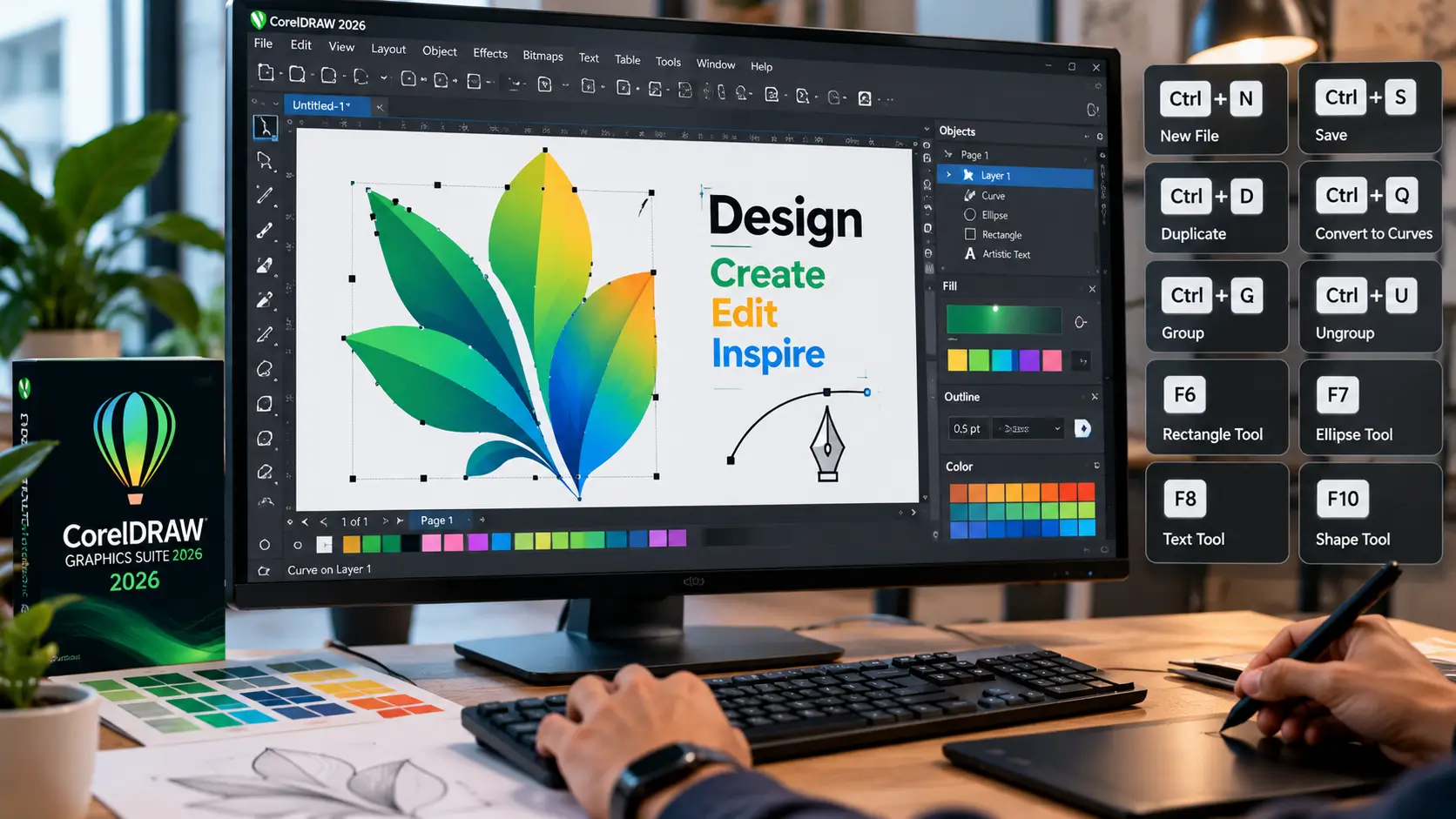
If you use CorelDRAW regularly, keyboard shortcuts can save far more time than constantly moving the mouse between the canvas, toolbox and menus. The right shortcuts make repetitive jobs such as duplicating objects, converting text to curves, changing tools, aligning artwork, zooming and moving objects much faster.
CorelDRAW Graphics Suite 2026 remains a major vector-design and page-layout platform for professional designers, illustrators and production workflows. The current 2026 release is available for Windows, Mac and Web, with the September 2026 update bringing additional features including Text-to-vector AI and performance improvements.
This guide focuses on the most useful CorelDRAW shortcuts, particularly for Windows users. It is organized by workflow so you can learn the shortcuts you actually use instead of trying to memorize hundreds of commands.
Important: CorelDRAW allows users to customize keyboard shortcuts. The tables below therefore refer primarily to default shortcuts and should be checked against your current workspace if a shortcut behaves differently. Corel’s current documentation allows users to view, change, delete and export shortcut assignments.
Quick CorelDRAW Shortcut Cheat Sheet
If you are a beginner, start with these shortcuts.
| Action | Shortcut |
|---|---|
| New document | Ctrl + N |
| Open document | Ctrl + O |
| Save | Ctrl + S |
| Save As | Ctrl + Shift + S |
| Ctrl + P | |
| Import | Ctrl + I |
| Export | Ctrl + E |
| Undo | Ctrl + Z |
| Redo | Ctrl + Shift + Z |
| Repeat last action | Ctrl + R |
| Copy | Ctrl + C |
| Cut | Ctrl + X |
| Paste | Ctrl + V |
| Select all | Ctrl + A |
| Duplicate | Ctrl + D |
| Delete | Delete |
| Group objects | Ctrl + G |
| Ungroup | Ctrl + U |
| Break apart | Ctrl + K |
| Combine objects | Ctrl + L |
| Convert to curves | Ctrl + Q |
| Text tool | F8 |
| Shape tool | F10 |
| Rectangle tool | F6 |
| Ellipse tool | F7 |
| Freehand tool | F5 |
| Zoom tool | Z |
| Zoom to all objects | F4 |
| Full-screen preview | F9 |
CorelDRAW’s current documentation confirms, for example, Ctrl+D for duplication, while Corel’s official shortcut reference lists many of the other default commands above.
CorelDRAW Shortcuts for File Management
These are the shortcuts you will use before and after the actual designing begins.
| Task | Windows shortcut |
|---|---|
| New drawing | Ctrl + N |
| Open drawing | Ctrl + O |
| Save drawing | Ctrl + S |
| Save As | Ctrl + Shift + S |
| Ctrl + P | |
| Import | Ctrl + I |
| Export | Ctrl + E |
| Close document | Ctrl + W |
| Exit CorelDRAW | Alt + F4 |
For designers working with logos, visiting-card layouts, brochures or print files, Ctrl+S should become automatic.
A simple habit is:
Design → Save → Make major change → Save again.
That matters particularly when working with large multi-page documents.
CorelDRAW Undo, Redo and Repeat Shortcuts
Mistakes are normal in design work. The important thing is being able to reverse them quickly.
| Action | Shortcut |
|---|---|
| Undo | Ctrl + Z |
| Redo | Ctrl + Shift + Z |
| Repeat last operation | Ctrl + R |
| Refresh drawing window | Ctrl + W |
The distinction between Redo and Repeat is important.
Redo reverses an undo operation.
Repeat applies the previous operation again.
For repetitive design work, Ctrl+R can be particularly useful because you can perform an action once and repeat it instead of rebuilding the operation manually.
CorelDRAW Copy, Paste and Duplicate Shortcuts
Object duplication is one of the most useful CorelDRAW workflows.
| Action | Shortcut |
|---|---|
| Copy | Ctrl + C |
| Cut | Ctrl + X |
| Paste | Ctrl + V |
| Duplicate | Ctrl + D |
| Duplicate in place | + on numeric keypad |
| Delete | Delete |
CorelDRAW’s current 2026 documentation specifically confirms Ctrl+D as the duplicate command. It also explains that duplication does not use the clipboard and can therefore be faster than copying and pasting.
Why Ctrl+D is better than copy-paste for repeated objects
Imagine creating:
- 10 product labels
- multiple social-media icons
- repeated business-card elements
- rows of packaging graphics
- repeated decorative shapes
Instead of:
Ctrl+C → Ctrl+V → move object
you can use:
Ctrl+D → move → Ctrl+D → move
CorelDRAW also supports Step and Repeat through Ctrl+Shift+D, which is useful when you need multiple copies at controlled offsets.
CorelDRAW Object Management Shortcuts
These shortcuts become essential once your design contains multiple objects.
| Action | Shortcut |
|---|---|
| Select all objects | Ctrl + A |
| Group | Ctrl + G |
| Ungroup | Ctrl + U |
| Combine | Ctrl + L |
| Break apart | Ctrl + K |
| Convert to curves | Ctrl + Q |
| Convert outline to object | Ctrl + Shift + Q |
| Bring forward one level | Ctrl + PgUp |
| Send backward one level | Ctrl + PgDn |
| Bring to front of page | Ctrl + Home |
| Send to back of page | Ctrl + End |
| Bring to front of layer | Shift + PgUp |
| Send to back of layer | Shift + PgDn |
| Object properties | Alt + Enter |
Group vs Combine
These commands are often confused.
Ctrl+G — Group
Groups objects so that they can be selected and transformed together.
Ctrl+L — Combine
Combines selected objects into a single object structure.
Ctrl+K — Break Apart
Breaks a combined object into separate components.
Understanding these differences is more important than simply memorizing the keys.
Convert Text or Objects to Curves
Ctrl + Q — Convert to Curves
This is one of the most important CorelDRAW shortcuts for professional print work.
Converting an object to curves changes it into editable vector paths that can be manipulated using node editing.
For example, designers commonly convert finished text to curves before sending certain artwork to print or production.
However, do not convert editable text to curves too early.
Once text has been converted, you lose normal text-editing functionality.
A safer workflow is:
Keep editable text → save master file → create production copy → convert required text to curves.
Corel’s shortcut reference lists Ctrl+Q for converting objects to curves.
CorelDRAW Tool Shortcuts
Learning the toolbox shortcuts can dramatically reduce mouse movement.
| Tool | Shortcut |
|---|---|
| Freehand tool | F5 |
| Rectangle tool | F6 |
| Ellipse tool | F7 |
| Text tool | F8 |
| Shape tool | F10 |
| Fountain Fill | F11 |
| Outline Pen | F12 |
| Zoom tool | Z |
| Hand tool | H |
| Interactive Fill | G |
| Eraser | X |
| Mesh Fill | M |
| Polygon | Y |
| Artistic Media | I |
| Graph Paper | D |
| Spiral | A |
The CorelDRAW shortcut reference identifies F5 as Freehand, F6 as Rectangle, F7 as Ellipse, F8 as Text, F10 as Shape, F11 as Fountain Fill and F12 as Outline Pen.
The five tool shortcuts beginners should memorize first
If you don’t want to memorize the entire list, start with:
F6 — Rectangle
F7 — Ellipse
F8 — Text
F10 — Shape
F5 — Freehand
These five cover a large portion of everyday beginner workflows.
CorelDRAW Zoom and Navigation Shortcuts
Large vector documents can quickly become difficult to navigate.
| Action | Shortcut |
|---|---|
| Zoom tool | Z |
| Zoom one-shot | F2 |
| Zoom out | F3 |
| Zoom to all objects | F4 |
| Full-screen preview | F9 |
| Zoom to page | Shift + F4 |
| Zoom to selection | Shift + F2 |
| Hand tool | H |
| Previous page | Page Up |
| Next page | Page Down |
F4 is particularly useful
If your artwork becomes lost somewhere outside the visible page, press:
F4
CorelDRAW’s default shortcut list identifies this as Zoom To Fit / Zoom To All Objects.
CorelDRAW Selection Shortcuts
Selection is fundamental to vector editing.
| Action | Shortcut |
|---|---|
| Select all | Ctrl + A |
| Deselect | Click empty area |
| Toggle Pick tool | Ctrl + Space |
| Nudge up | Up Arrow |
| Nudge down | Down Arrow |
| Nudge left | Left Arrow |
| Nudge right | Right Arrow |
| Micro-nudge up | Ctrl + Up Arrow |
| Micro-nudge down | Ctrl + Down Arrow |
| Micro-nudge left | Ctrl + Left Arrow |
| Micro-nudge right | Ctrl + Right Arrow |
| Super-nudge up | Shift + Up Arrow |
| Super-nudge down | Shift + Down Arrow |
| Super-nudge left | Shift + Left Arrow |
| Super-nudge right | Shift + Right Arrow |
Nudge vs Micro Nudge
This is particularly useful for precise logo and print design.
Normal arrow keys move an object by the standard nudge amount.
Ctrl + Arrow provides a smaller adjustment.
Shift + Arrow provides a larger adjustment.
This lets you position objects more precisely without dragging them with the mouse.
CorelDRAW Alignment Shortcuts
Alignment is one area where CorelDRAW’s single-key shortcuts can be extremely fast.
| Action | Shortcut |
|---|---|
| Align bottom | B |
| Align center horizontally | E |
| Align center vertically | C |
| Align left | L |
| Align right | R |
| Align top | T |
| Center to page | P |
For example, if you select several objects and need their horizontal centers aligned, E can be much faster than opening an alignment panel.
Corel’s published shortcut reference lists these alignment commands among its default shortcuts.
CorelDRAW Distribution Shortcuts
When multiple objects need equal spacing, distribution shortcuts become useful.
| Action | Shortcut |
|---|---|
| Distribute bottom | Shift + B |
| Distribute horizontal centers | Shift + E |
| Distribute vertical centers | Shift + C |
| Distribute left | Shift + L |
| Distribute right | Shift + R |
| Distribute horizontal spacing | Shift + P |
| Distribute vertical spacing | Shift + A |
| Distribute top | Shift + T |
These can save substantial time when creating grids, icon sets, menus, catalog layouts and repeated print elements.
CorelDRAW Fill and Outline Shortcuts
Colour and outlines are central to vector design.
| Action | Shortcut |
|---|---|
| Fountain Fill | F11 |
| Uniform Fill | Shift + F11 |
| Outline Pen | F12 |
| Outline Color | Shift + F12 |
| Interactive Fill | G |
For example:
F11 opens the Fountain Fill function.
Shift+F11 applies the Uniform Fill command.
F12 opens Outline Pen controls.
These are particularly useful when creating logos, signage, illustrations and marketing artwork.
CorelDRAW Text Shortcuts
Typography-heavy designs can benefit significantly from keyboard shortcuts.
| Action | Shortcut |
|---|---|
| Text tool | F8 |
| Character formatting | Ctrl + T |
| Edit Text | Ctrl + Shift + T |
| Bold | Ctrl + B |
| Full justification | Ctrl + J |
| Use bullets | Ctrl + M |
| Font size controls | Ctrl + numeric keypad keys |
| Horizontal text | Ctrl + , |
| Vertical text | Ctrl + . |
CorelDRAW also provides formatting-code shortcuts for functions such as nonbreaking spaces, em spaces and en spaces. These are more specialized and are generally useful only in text-heavy production work.
Ctrl + T
Use Ctrl+T when you need detailed character formatting.
It is especially useful when adjusting:
- Font
- Font size
- Character attributes
- Spacing
- Other typography properties
CorelDRAW Colour and Image Adjustment Shortcuts
Some shortcuts open adjustment functions rather than activating a drawing tool.
| Action | Shortcut |
|---|---|
| Brightness/Contrast/Intensity | Ctrl + B |
| Color Balance | Ctrl + Shift + B |
| Hue/Saturation/Lightness | Ctrl + Shift + U |
These can be useful when working with imported bitmap content or visual assets inside a broader CorelDRAW project.
CorelDRAW Docker Shortcuts
Power users often rely on dockers for precision work.
| Docker / command | Shortcut |
|---|---|
| Contour | Ctrl + F9 |
| Envelope | Ctrl + F7 |
| Graphic and Text Styles | Ctrl + F5 |
| View Manager | Ctrl + F2 |
| Symbol Manager | Ctrl + F3 |
| Lens | Alt + F3 |
| Position | Alt + F7 |
| Rotate | Alt + F8 |
| Scale | Alt + F9 |
| Size | Alt + F10 |
| Insert Symbol Character | Ctrl + F11 |
| Spell Check | Ctrl + F12 |
Not every designer needs these shortcuts.
They become useful when you repeatedly use the same docker during professional production work.
CorelDRAW PowerClip Shortcut
Ctrl + 1 — Place Inside Container
PowerClip is important for placing one object inside another container.
For example, you can use it for:
- Images inside shapes
- Photos inside circles
- Product images inside mockups
- Artwork inside custom frames
The default shortcut reference lists Ctrl+1 for placing selected objects inside a PowerClip container.
CorelDRAW Snapping Shortcuts
Precise positioning is easier when snapping is used correctly.
| Action | Shortcut |
|---|---|
| Snap to Grid | Ctrl + Y |
| Snap to Objects | Alt + Z |
| Dynamic Guides | Alt + Shift + D |
Snapping is particularly useful for:
- Logo construction
- Packaging layouts
- Signage
- Icons
- Technical illustrations
- Print layouts
CorelDRAW also provides dynamic guides for positioning objects relative to other objects.
CorelDRAW Page Navigation Shortcuts
For multi-page brochures, catalogs and documents, page shortcuts can be more useful than they initially appear.
| Action | Shortcut |
|---|---|
| Previous page | Page Up |
| Next page | Page Down |
| Front of page | Ctrl + Home |
| Back of page | Ctrl + End |
| Front of layer | Shift + Page Up |
| Back of layer | Shift + Page Down |
If you frequently create multi-page documents, Page Up and Page Down are worth memorizing immediately.
15 CorelDRAW Shortcuts Beginners Should Learn First
Trying to memorize 80 shortcuts on your first day is unnecessary.
Start with these:
| Priority | Shortcut | What it does |
|---|---|---|
| 1 | Ctrl + S | Save |
| 2 | Ctrl + Z | Undo |
| 3 | Ctrl + D | Duplicate |
| 4 | Ctrl + G | Group |
| 5 | Ctrl + U | Ungroup |
| 6 | Ctrl + Q | Convert to curves |
| 7 | F8 | Text tool |
| 8 | F10 | Shape tool |
| 9 | F6 | Rectangle |
| 10 | F7 | Ellipse |
| 11 | F4 | Fit all objects |
| 12 | Ctrl + A | Select all |
| 13 | Ctrl + C | Copy |
| 14 | Ctrl + V | Paste |
| 15 | Ctrl + E | Export |
Once these become muscle memory, add the more specialized shortcuts.
Best CorelDRAW Shortcuts for Logo Design
Logo design usually involves repeated shapes, alignment, duplication and node editing.
A useful workflow is:
F6 → create rectangle
F7 → create circle/ellipse
Ctrl+D → duplicate
E/C → align objects
Ctrl+Q → convert to curves
F10 → edit nodes
Ctrl+G → group finished elements
The important point is that shortcuts work best in combinations.
A designer who knows 10 related shortcuts can often work faster than someone who knows 100 unrelated ones.
Best CorelDRAW Shortcuts for DTP and Print Design
For brochures, flyers, visiting cards, menus and other print projects, prioritize:
- Ctrl + S — Save
- Ctrl + D — Duplicate
- Ctrl + G — Group
- Ctrl + U — Ungroup
- Ctrl + Q — Convert to curves
- Ctrl + E — Export
- Ctrl + I — Import
- Ctrl + P — Print
- F8 — Text
- Ctrl + T — Character formatting
- P — Center to page
- E — Horizontal center
- C — Vertical center
- F4 — Fit artwork
- Page Up / Page Down — Navigate pages
A production habit worth adopting
Do not convert everything to curves while you are still designing.
Maintain an editable master file.
Then create a production version when appropriate.
This protects your ability to correct text later.
Best CorelDRAW Shortcuts for Social Media Graphics
If you use CorelDRAW to create thumbnails, posters, social posts or promotional graphics, focus on:
F6 — rectangles
F7 — circles
F8 — text
Ctrl+D — duplicate
Ctrl+G — group
Ctrl+Q — curves
E/C — alignment
P — center to page
F4 — fit artwork
Ctrl+E — export
This gives you a compact workflow without requiring memorization of the entire shortcut system.
CorelDRAW Shortcut Combinations That Save the Most Time
The real productivity benefit comes from combining commands.
Create a repeated design element
Create → Ctrl+D → move → Ctrl+D → repeat
Build a simple logo
F6/F7 → Ctrl+D → E/C → Ctrl+Q → F10
Prepare artwork for production
Ctrl+S → duplicate/save master → Ctrl+Q where required → inspect → Ctrl+E
Create a multi-page layout
F8 → Ctrl+T → Page Up/Page Down → Ctrl+S
Precise object positioning
Select object → Arrow → Ctrl+Arrow → Shift+Arrow
These workflows are easier to remember than memorizing isolated keyboard combinations.
CorelDRAW Shortcuts on Mac
CorelDRAW Graphics Suite 2026 is available for macOS as well as Windows. The underlying commands remain broadly similar, but modifier keys can differ between platforms.
For example, Corel’s Mac documentation uses Command+D for duplication rather than Windows Ctrl+D.
If you work across Windows and Mac, do not assume that every Windows Ctrl-based shortcut should simply be copied to the Mac.
The safest approach is to check the shortcut shown in your current CorelDRAW menu or shortcut configuration.
How to Customize CorelDRAW Keyboard Shortcuts
One of CorelDRAW’s most useful features is that you don’t have to accept the default shortcut arrangement.
CorelDRAW allows users to:
- Add shortcuts
- Change shortcuts
- Delete shortcuts
- View all shortcuts
- Create customized shortcut sets
- Save shortcut configurations
- Export shortcut lists to CSV
The application organizes shortcut assignments into tables including Main, Curve Editing, Text Editing, Table Editing and other categories.
Why customization matters
Suppose you use one command hundreds of times per day but its default shortcut is awkward.
You can assign a shortcut that better matches your workflow.
However, avoid changing shortcuts randomly.
Create a consistent system.
For example:
Ctrl-based combinations → document/object operations
F keys → primary tools
Single letters → frequently used tools
Shift combinations → related variations
Consistency makes shortcuts easier to remember.
What If a CorelDRAW Shortcut Is Not Working?
There are several possible reasons.
1. The shortcut was customized
Check the current shortcut assignment in CorelDRAW’s shortcut settings.
2. Another command has taken the shortcut
CorelDRAW warns about shortcut conflicts when assigning keys.
3. The current context is different
Some shortcuts behave differently when you are editing text, working with nodes or interacting with a particular docker.
4. The application workspace has changed
CorelDRAW allows the workspace to be reset to default settings. On Windows, Corel’s 2026 documentation says you can restart the application while holding F8 to reset the current workspace.
5. Another application is intercepting the shortcut
Operating-system shortcuts and third-party software can sometimes interfere with application shortcuts.
Corel specifically notes that operating-system shortcuts cannot be assigned to application commands.
How Many CorelDRAW Shortcuts Should You Actually Memorize?
You do not need to memorize every shortcut.
A practical progression is:
Beginner
Learn about 15 shortcuts.
Focus on:
- Save
- Undo
- Copy
- Paste
- Duplicate
- Group
- Ungroup
- Text
- Shape
- Rectangle
- Ellipse
- Zoom
- Fit
- Convert to curves
- Export
Intermediate
Move toward 30–40 shortcuts.
Add:
- Alignment
- Distribution
- Nudging
- Snapping
- Page navigation
- Fill and outline
- PowerClip
- Docker commands
Advanced
Customize your workspace around the commands you personally use most.
The objective isn’t to achieve a large shortcut count.
The objective is to reduce repetitive mouse movement and keep your attention on the artwork.
CorelDRAW Shortcut Cheat Sheet
For quick reference:
| Shortcut | Function |
|---|---|
| Ctrl + N | New |
| Ctrl + O | Open |
| Ctrl + S | Save |
| Ctrl + Shift + S | Save As |
| Ctrl + P | |
| Ctrl + I | Import |
| Ctrl + E | Export |
| Ctrl + Z | Undo |
| Ctrl + Shift + Z | Redo |
| Ctrl + R | Repeat |
| Ctrl + C | Copy |
| Ctrl + X | Cut |
| Ctrl + V | Paste |
| Ctrl + A | Select all |
| Ctrl + D | Duplicate |
| Ctrl + G | Group |
| Ctrl + U | Ungroup |
| Ctrl + L | Combine |
| Ctrl + K | Break apart |
| Ctrl + Q | Convert to curves |
| Ctrl + Shift + Q | Convert outline to object |
| Ctrl + 1 | PowerClip container |
| Ctrl + Shift + D | Step and Repeat |
| Ctrl + PgUp | Forward one |
| Ctrl + PgDn | Back one |
| Ctrl + Home | Front of page |
| Ctrl + End | Back of page |
| Shift + PgUp | Front of layer |
| Shift + PgDn | Back of layer |
| F5 | Freehand |
| F6 | Rectangle |
| F7 | Ellipse |
| F8 | Text |
| F9 | Full-screen preview |
| F10 | Shape |
| F11 | Fountain Fill |
| F12 | Outline Pen |
| Z | Zoom |
| H | Hand |
| G | Interactive Fill |
| X | Eraser |
| M | Mesh Fill |
| Y | Polygon |
| I | Artistic Media |
| D | Graph Paper |
| A | Spiral |
| P | Center to page |
| E | Align horizontal center |
| C | Align vertical center |
| L | Align left |
| R | Align right |
| T | Align top |
| B | Align bottom |
| Ctrl + Y | Snap to grid |
| Alt + Z | Snap to objects |
| Alt + Shift + D | Dynamic Guides |
| Page Up | Previous page |
| Page Down | Next page |
| F4 | Zoom to all objects |
| Shift + F4 | Zoom to page |
| Shift + F2 | Zoom to selection |
The Bottom Line
The most useful CorelDRAW shortcuts aren’t necessarily the most complicated ones.
For everyday design work, start with:
Ctrl+S, Ctrl+Z, Ctrl+D, Ctrl+G, Ctrl+U, Ctrl+Q, F6, F7, F8, F10 and F4.
Once those become automatic, add alignment, distribution, snapping, nudging, PowerClip and page-navigation shortcuts.
CorelDRAW 2026 also gives experienced users the ability to customize and export shortcut configurations, so the most productive setup is ultimately the one that matches the way you actually design.
The bigger lesson is simple: don’t try to memorize every shortcut. Build a small personal set around the tasks you repeat every day.
That is what turns keyboard shortcuts from a reference list into a real productivity tool.
Frequently Asked Questions
What are the most useful CorelDRAW shortcuts?
For beginners, Ctrl+S, Ctrl+Z, Ctrl+D, Ctrl+G, Ctrl+U, Ctrl+Q, F6, F7, F8, F10 and F4 are among the most useful shortcuts to learn first.
What is the shortcut for duplicate in CorelDRAW?
The default Windows shortcut for Duplicate is Ctrl+D. CorelDRAW also supports other methods for quickly creating copies, including the numeric keypad plus key.
What is the shortcut for converting to curves in CorelDRAW?
The default shortcut is Ctrl+Q. Converting an object to curves changes it into editable vector paths.
What is the CorelDRAW shortcut for the Text tool?
Press F8 to activate the Text tool.
What is the shortcut for the Shape tool in CorelDRAW?
Press F10 to activate the Shape tool.
What is the shortcut for zooming to all objects?
Press F4 to zoom to all objects.
Can CorelDRAW shortcuts be customized?
Yes. CorelDRAW allows users to assign, change and delete keyboard shortcuts and save customized shortcut configurations. Shortcut lists can also be exported to CSV.
Are CorelDRAW shortcuts the same on Windows and Mac?
Not always. CorelDRAW is available on both platforms, but modifier keys can differ. For example, Corel’s Mac documentation uses Command+D for duplication, while Windows uses Ctrl+D.
Conclusion
CorelDRAW shortcuts are most valuable when they become part of your normal design workflow rather than something you occasionally look up.
Start with the essential commands, practice them while working on real projects, and gradually add shortcuts for the tools and operations you use most.
For professional designers, DTP operators and freelancers, even a small collection of well-learned shortcuts can reduce repetitive mouse work and make everyday vector editing more efficient.