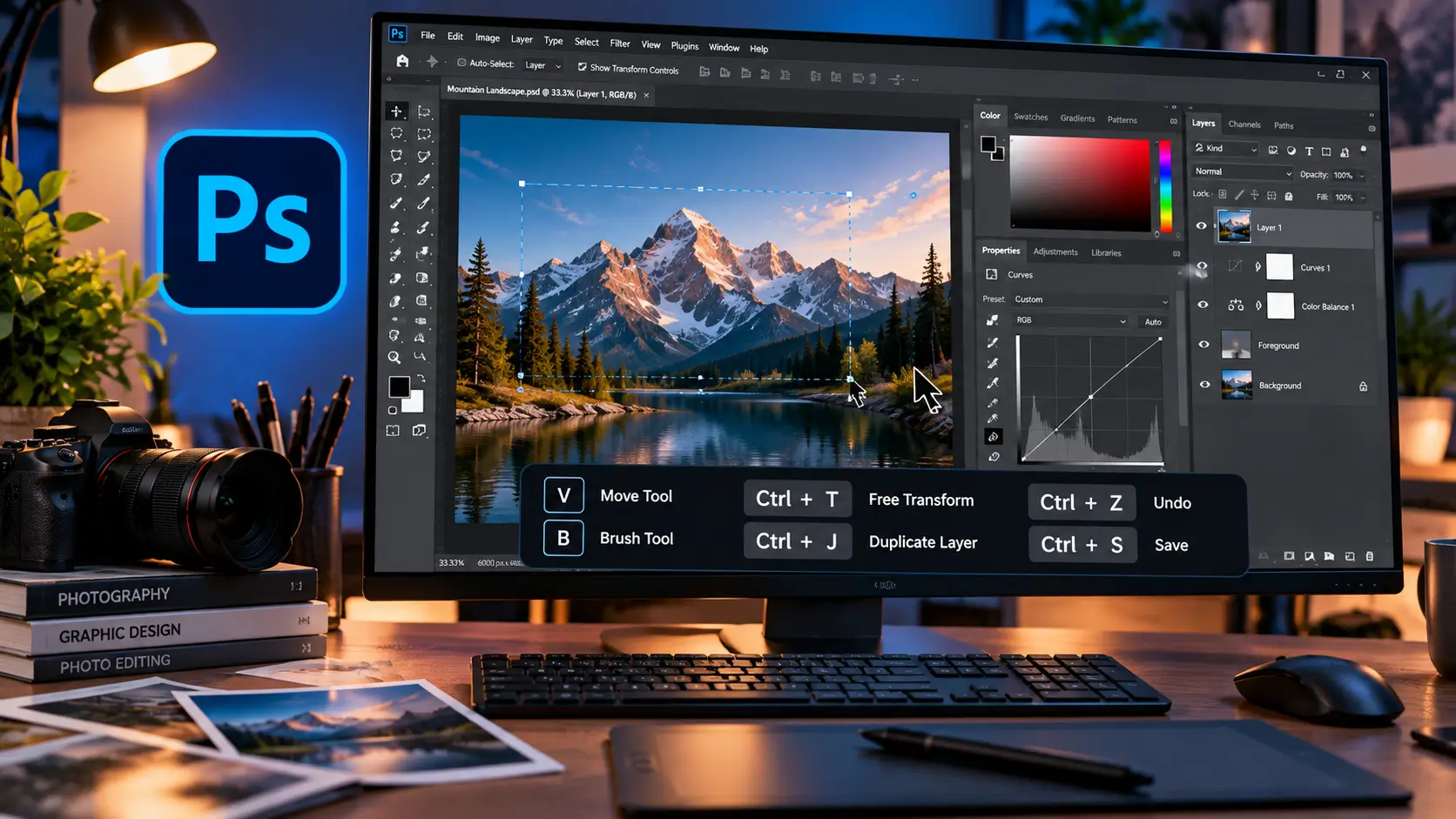
Photoshop can do almost everything from its menus and panels, but using a mouse for every command quickly becomes inefficient. Photoshop shortcuts let you switch tools, create selections, duplicate layers, transform objects, zoom around a canvas and move through an editing workflow without constantly searching through menus.
Adobe’s current Photoshop documentation continues to support keyboard shortcuts across tools, menus and panels, and users can view or customize them through Edit > Keyboard Shortcuts. On Windows, the shortcut for opening the Keyboard Shortcuts dialog is Alt + Shift + Ctrl + K; on macOS, it is Option + Shift + Command + K.
This guide focuses on the shortcuts that are most useful in everyday Photoshop work rather than attempting to reproduce every specialized command in Adobe’s full reference.
Quick answer: Which Photoshop shortcuts should you learn first?
If you are new to Photoshop, start with these:
| Action | Windows | Mac |
|---|---|---|
| Undo | Ctrl + Z | Command + Z |
| Step backward | Ctrl + Alt + Z | Command + Option + Z |
| Step forward | Ctrl + Shift + Z | Command + Shift + Z |
| Free Transform | Ctrl + T | Command + T |
| Duplicate layer | Ctrl + J | Command + J |
| Select all | Ctrl + A | Command + A |
| Deselect | Ctrl + D | Command + D |
| Brush | B | B |
| Move tool | V | V |
| Crop tool | C | C |
| Type tool | T | T |
| Zoom | Z | Z |
| Hand/pan | Spacebar | Spacebar |
| Save | Ctrl + S | Command + S |
| New layer | Ctrl + Shift + N | Command + Shift + N |
| Hide/show panels | Tab | Tab |
These commands cover a large portion of ordinary Photoshop work.
Photoshop shortcuts: Windows vs Mac
The main difference is the modifier key.
In most Photoshop commands:
- Windows Ctrl → Mac Command
- Windows Alt → Mac Option
- Windows Shift → Mac Shift
Single-letter tool shortcuts are generally the same.
For example:
- Ctrl + T becomes Command + T
- Ctrl + J becomes Command + J
- Alt + drag becomes Option + drag
- Shift + click generally remains Shift + click
This makes it relatively easy to move between Windows and Mac once you understand the modifier-key pattern.
1. Essential Photoshop editing shortcuts
These are the commands worth memorizing before moving on to more specialized shortcuts.
| Action | Windows | Mac |
|---|---|---|
| Undo last command | Ctrl + Z | Command + Z |
| Step backward | Ctrl + Alt + Z | Command + Option + Z |
| Step forward | Ctrl + Shift + Z | Command + Shift + Z |
| Cut | Ctrl + X | Command + X |
| Copy | Ctrl + C | Command + C |
| Paste | Ctrl + V | Command + V |
| Select all | Ctrl + A | Command + A |
| Deselect | Ctrl + D | Command + D |
| Reselect | Shift + Ctrl + D | Shift + Command + D |
| Invert selection | Shift + Ctrl + I | Shift + Command + I |
| Save | Ctrl + S | Command + S |
| Free Transform | Ctrl + T | Command + T |
| Open Keyboard Shortcuts | Alt + Shift + Ctrl + K | Option + Shift + Command + K |
| Cancel dialog/action | Esc | Esc |
Adobe’s official shortcut reference confirms the core commands including Free Transform, Deselect, Undo, New Layer via Copy and other frequently used operations.
Why Ctrl/Command + Z matters so much
Undo is arguably the most frequently used Photoshop shortcut.
But there is an important distinction between Undo and moving through multiple History states.
For more extensive history navigation, Photoshop also provides:
Windows: Ctrl + Alt + Z
Mac: Command + Option + Z
And stepping forward uses:
Windows: Ctrl + Shift + Z
Mac: Command + Shift + Z
2. Photoshop tool shortcuts
Photoshop assigns many tools to single-letter shortcuts. These are some of the most valuable shortcuts to learn because they eliminate repeated trips to the toolbar.
| Tool | Shortcut |
|---|---|
| Move | V |
| Marquee | M |
| Lasso | L |
| Object/Quick Selection/Magic Wand group | W |
| Crop | C |
| Eyedropper | I |
| Healing tools | J |
| Brush | B |
| Clone Stamp | S |
| History Brush | Y |
| Eraser | E |
| Gradient/Paint Bucket | G |
| Dodge/Burn/Sponge | O |
| Pen | P |
| Type | T |
| Path Selection | A |
| Shape tools | U |
| Hand | H |
| Rotate View | R |
| Zoom | Z |
| Quick Mask | Q |
Adobe groups several related tools under the same letter. For example, M cycles between marquee tools and W is used for the Magic Wand, Quick Selection and Object Selection tool group. Depending on your Photoshop preferences, repeatedly pressing the shortcut or using the Shift key can cycle through tools in the group.
A useful trick: temporarily switch tools
Some Photoshop shortcuts work as temporary tool switches.
For example, holding the Spacebar temporarily activates the Hand tool so you can pan around a document without permanently switching away from your current tool.
This is particularly useful when working on large images.
3. Photoshop brush shortcuts
If you use Photoshop for retouching, digital painting, masking or compositing, brush shortcuts can save enormous amounts of time.
| Action | Windows | Mac |
|---|---|---|
| Brush tool | B | B |
| Decrease brush size | [ | [ |
| Increase brush size | ] | ] |
| Decrease hardness | { | { |
| Increase hardness | } | } |
| Switch foreground/background colours | X | X |
| Default colours | D | D |
| Temporarily switch brush to eraser | Hold ~ | Hold ~ |
| Pan canvas while brushing | Spacebar | Spacebar |
The square-bracket shortcuts are especially useful.
Instead of opening the Brush Settings panel every few seconds, you can press:
[ to make the brush smaller.
] to make it larger.
Adobe’s official shortcut reference also lists the tilde/grave-accent method for temporarily switching a brush between painting and erasing modes.
4. Photoshop layer shortcuts
Layers are central to non-destructive Photoshop editing.
These shortcuts are therefore among the most valuable for everyday users.
| Action | Windows | Mac |
|---|---|---|
| New layer | Ctrl + Shift + N | Command + Shift + N |
| New layer via copy | Ctrl + J | Command + J |
| New layer via cut | Shift + Ctrl + J | Shift + Command + J |
| Group layers | Ctrl + G | Command + G |
| Ungroup layers | Shift + Ctrl + G | Shift + Command + G |
| Merge layers | Ctrl + E | Command + E |
| Merge visible | Shift + Ctrl + E | Shift + Command + E |
| Select all layers | Alt + Ctrl + A | Option + Command + A |
| Move layer upward | Ctrl + ] | Command + ] |
| Move layer downward | Ctrl + [ | Command + [ |
| Bring layer to front | Alt + Ctrl + ] | Option + Command + ] |
| Send layer to back | Alt + Ctrl + [ | Option + Command + [ |
| Lock layers | Ctrl + / | Command + / |
The shortcut beginners should learn first: Ctrl/Command + J
Ctrl + J on Windows or Command + J on Mac duplicates the selected layer or selection.
It is useful for:
- duplicating a photo layer
- creating a backup before editing
- duplicating text
- creating a working copy
- separating a selected object onto another layer
It is one of the simplest ways to make non-destructive editing part of your normal workflow.
5. Photoshop selection shortcuts
Selections become much easier when you combine tool shortcuts with modifier keys.
| Action | Windows | Mac |
|---|---|---|
| Select all | Ctrl + A | Command + A |
| Deselect | Ctrl + D | Command + D |
| Reselect | Shift + Ctrl + D | Shift + Command + D |
| Invert selection | Shift + Ctrl + I | Shift + Command + I |
| Add to selection | Shift + drag | Shift + drag |
| Subtract from selection | Alt + drag | Option + drag |
| Intersect selection | Shift + Alt + drag | Shift + Option + drag |
| Constrain selection to square/circle | Shift + drag | Shift + drag |
| Draw selection from centre | Alt + drag | Option + drag |
The important concept is that Shift and Alt/Option change what a selection operation does.
For example:
- Shift adds.
- Alt/Option subtracts.
- Shift + Alt/Option intersects.
Once this becomes muscle memory, complex selections become much faster.
6. Photoshop transform shortcuts
Transforming an object is one of the most common Photoshop operations.
Free Transform
Windows: Ctrl + T
Mac: Command + T
Free Transform lets you resize, rotate and otherwise transform the selected layer or content.
Adobe’s official reference lists Free Transform as one of Photoshop’s primary common shortcuts.
Move transformed objects
While transforming, keyboard modifiers can change how the transformation behaves.
Use the on-screen transform controls and modifier keys rather than relying solely on menu commands.
The exact behaviour can vary depending on the current Photoshop version and transform settings, so it is worth checking Adobe’s current documentation if you are working with a specialized transformation workflow.
7. Photoshop navigation and zoom shortcuts
Large Photoshop documents can be difficult to navigate with the mouse alone.
These shortcuts help keep your attention on the canvas.
| Action | Windows | Mac |
|---|---|---|
| Zoom tool | Z | Z |
| Zoom to 100% | Ctrl + 1 | Command + 1 |
| Fit image in window | Ctrl + 0 | Command + 0 |
| Zoom in | Ctrl + + | Command + + |
| Zoom out | Ctrl + – | Command + – |
| Temporarily use Hand tool | Spacebar | Spacebar |
| Full-screen display cycle | F | F |
| Quick Mask | Q | Q |
Adobe’s shortcut reference lists Ctrl/Command + 1 for 100% magnification and Ctrl/Command + 0 for fitting the image in the window.
The Spacebar shortcut is underrated
If you are working on a large canvas, pressing and holding the Spacebar temporarily switches to the Hand tool.
That means you can:
- Paint with the Brush.
- Hold Spacebar.
- Pan the image.
- Release Spacebar.
- Continue painting.
You don’t have to repeatedly select the Hand tool.
8. Photoshop view and workspace shortcuts
A clean workspace can make editing easier.
| Action | Shortcut |
|---|---|
| Show/hide panels | Tab |
| Full-screen modes | F |
| Quick Mask | Q |
| Show/hide guides | Ctrl + ; / Command + ; |
| Show/hide extras | Ctrl + H / Command + H |
| Show/hide rulers | Ctrl + R / Command + R |
Be careful with Ctrl/Command + H because Photoshop uses it for hiding extras, and the exact visible elements depend on the current workspace and settings.
Adobe also provides panel-specific shortcuts through the Keyboard Shortcuts dialog.
9. Photoshop text shortcuts
Photoshop is frequently used for posters, thumbnails, social-media graphics and other designs containing text.
The Type tool shortcut is:
T
Adobe also provides keyboard commands for adjusting type size, leading, tracking and paragraph formatting.
Some useful examples include:
| Action | Windows | Mac |
|---|---|---|
| Type tool | T | T |
| Increase/decrease selected type size | Ctrl + Shift + < / > | Command + Shift + < / > |
| Adjust tracking/kerning | Alt + Left/Right Arrow | Option + Left/Right Arrow |
| Adjust leading | Alt + Up/Down Arrow | Option + Up/Down Arrow |
| Align paragraph left | Ctrl + Shift + L | Command + Shift + L |
| Center paragraph | Ctrl + Shift + C | Command + Shift + C |
| Align paragraph right | Ctrl + Shift + R | Command + Shift + R |
These are more useful once you are regularly designing graphics rather than simply editing photographs.
10. Photoshop colour shortcuts
Photoshop’s colour shortcuts are simple but extremely useful.
Reset colours
D
Returns the foreground and background colours to their default black and white arrangement.
Swap colours
X
Switches foreground and background colours.
This becomes particularly useful when painting on masks.
For example, when editing a layer mask:
- White reveals.
- Black conceals.
- X quickly swaps between them.
That makes D + X a particularly useful combination for mask-based editing.
11. Photoshop mask shortcuts
Layer masks are one of Photoshop’s most powerful non-destructive editing tools.
Useful commands include:
| Action | Windows | Mac |
|---|---|---|
| Invert mask | Ctrl + I | Command + I |
| Disable mask temporarily | Shift-click mask | Shift-click mask |
| Target mask | Ctrl + | Command + |
| Add hidden mask | Alt-click mask icon | Option-click mask icon |
| Select and Mask | Ctrl + Alt + R | Command + Option + R |
Adobe’s official reference includes these mask operations in its Select and Mask documentation.
Why mask shortcuts matter
A beginner may repeatedly delete pixels when trying to remove part of an image.
A more flexible workflow is:
Selection → Layer Mask → Brush → X → refine
This keeps the original image information available for later changes.
12. Photoshop panel shortcuts
Photoshop also has shortcuts for opening and closing important panels.
| Panel | Windows | Mac |
|---|---|---|
| Brush | F5 | F5 |
| Color | F6 | F6 |
| Layers | F7 | F7 |
| Info | F8 | F8 |
| Actions | F9 | F9 |
| Revert | F12 | F12 |
On some Mac keyboards, function keys may require the Fn key depending on macOS keyboard settings. Adobe notes this in its official shortcut reference.
13. Photoshop function-key shortcuts
Function keys are easy to overlook because many keyboards assign operating-system functions to them.
Adobe’s desktop shortcut reference includes:
- F2 — Cut
- F3 — Copy
- F4 — Paste
- F5 — Brush panel
- F6 — Color panel
- F7 — Layers panel
- F8 — Info panel
- F9 — Actions panel
- F12 — Revert
On macOS, you may need to hold Fn to access the function-key commands depending on your keyboard configuration.
14. Photoshop shortcuts for faster selections
One of the biggest improvements comes from combining shortcuts rather than memorizing isolated commands.
Consider this workflow:
Add something to a selection
Hold Shift while dragging.
Remove something from a selection
Hold Alt/Option while dragging.
Intersect two selections
Hold Shift + Alt on Windows or Shift + Option on Mac.
Move a selection while creating it
Hold the Spacebar while dragging the selection.
These combinations are often more useful than memorizing another dozen standalone shortcuts.
15. Photoshop shortcuts for photographers
If you primarily use Photoshop for photography, prioritize:
- B — Brush
- J — Healing tools
- S — Clone Stamp
- C — Crop
- I — Eyedropper
- Ctrl/Command + T — Transform
- Ctrl/Command + J — Duplicate
- Ctrl/Command + Z — Undo
- Ctrl/Command + 0 — Fit image
- Ctrl/Command + 1 — 100% view
- [ / ] — Brush size
- D — Reset colours
- X — Swap colours
- Spacebar — Pan
- Tab — Hide panels
These shortcuts cover much of the basic retouching workflow.
16. Photoshop shortcuts for graphic designers
Graphic designers should prioritize a slightly different set:
- V — Move
- T — Type
- U — Shapes
- P — Pen
- Ctrl/Command + T — Transform
- Ctrl/Command + J — Duplicate
- Ctrl/Command + G — Group
- Shift + Ctrl/Command + G — Ungroup
- Ctrl/Command + Shift + N — New layer
- Ctrl/Command + E — Merge
- Ctrl/Command + ] — Move layer forward
- Ctrl/Command + [ — Move layer backward
- Ctrl/Command + 0 — Fit canvas
- Spacebar — Pan
- Tab — Hide panels
17. Photoshop shortcuts for YouTube thumbnail creators
For thumbnails, speed matters because many projects involve repeated image manipulation.
A useful workflow is:
V → W → Ctrl/Command + J → Ctrl/Command + T → T → B
In practice:
- V — move objects
- W — select a subject/object
- Ctrl/Command + J — put selected content on a new layer
- Ctrl/Command + T — resize/transform
- T — add text
- B — refine masks or paint
This sequence is often more valuable to a thumbnail creator than a giant list of obscure shortcuts.
18. Photoshop shortcuts for beginners: the 15 to memorize first
If you are completely new to Photoshop, do not try to memorize all 80+ commands at once.
Start here:
| Priority | Shortcut | What it does |
|---|---|---|
| 1 | Ctrl/Command + Z | Undo |
| 2 | Ctrl/Command + J | Duplicate |
| 3 | Ctrl/Command + T | Transform |
| 4 | V | Move |
| 5 | B | Brush |
| 6 | T | Type |
| 7 | C | Crop |
| 8 | W | Selection tools |
| 9 | Spacebar | Pan |
| 10 | [ / ] | Brush size |
| 11 | D | Default colours |
| 12 | X | Swap colours |
| 13 | Ctrl/Command + D | Deselect |
| 14 | Ctrl/Command + A | Select all |
| 15 | Tab | Hide/show panels |
Once these become automatic, add layer and selection shortcuts.
19. How to customize Photoshop shortcuts
You do not have to use Adobe’s default shortcut layout forever.
Photoshop allows you to edit or create shortcut sets.
Go to:
Edit → Keyboard Shortcuts
Adobe’s current documentation says the Keyboard Shortcuts and Menus dialog can manage shortcuts for:
- Application Menus
- Panel Menus
- Tools
- Taskspaces
You can change an existing shortcut, create a custom set and save your changes.
Keyboard shortcut to open the shortcut editor
Windows: Alt + Shift + Ctrl + K
macOS: Option + Shift + Command + K
This is particularly useful for professional users who repeatedly use commands that do not have convenient default shortcuts.
20. How to create your own Photoshop shortcut system
Instead of changing dozens of defaults, customize only commands you use repeatedly.
A good custom shortcut system should follow three rules.
Rule 1: Prioritize frequency
Give shortcuts to commands you use dozens of times a day.
Rule 2: Avoid conflicts
Photoshop warns you if a new shortcut is already assigned to another command or tool.
Rule 3: Save a custom set
Don’t overwrite your default set unnecessarily.
Save your custom configuration as a separate shortcut set.
That way, you can return to the standard Photoshop shortcuts if something goes wrong.
21. Photoshop desktop vs Photoshop on the web
An important distinction is often missed in shortcut guides.
Photoshop desktop and Photoshop on the web do not have identical shortcut lists.
Adobe publishes a separate shortcut reference for Photoshop on the web. It includes common commands such as:
- V — Move
- L — Lasso
- W — Quick Selection
- M — Marquee
- B — Brush
- E — Eraser
- J — Spot Healing
- S — Clone Stamp
- Ctrl/Command + T — Transform
- Ctrl/Command + J — New layer via copy
- Ctrl/Command + G — Group
- Ctrl/Command + E — Merge layers
Adobe’s web version also exposes its shortcut list directly inside the application under Help → Keyboard shortcuts.
Therefore, if a shortcut behaves differently in Photoshop on the web, check the web-specific shortcut list rather than assuming the desktop command applies identically.
22. Why some Photoshop shortcuts may not work
A shortcut can fail even when the command itself is valid.
Adobe identifies several possible causes, including:
- Corrupted Photoshop preferences
- Conflicting applications
- Third-party utilities
- Extensions
- Drivers
- Keyboard-related conflicts
Adobe specifically documents cases involving utilities such as password managers, keyboard customization software and other applications that can intercept keyboard input.
If a shortcut suddenly stops working, don’t immediately assume Adobe removed it.
Try this sequence:
- Check whether the shortcut works in another document.
- Restart Photoshop.
- Check for another application intercepting the keystroke.
- Test with other shortcuts.
- Update Photoshop and relevant drivers.
- Reset Photoshop preferences if necessary.
23. The most useful shortcut combinations to practice
Rather than memorizing everything, practice these combinations.
Editing workflow
Ctrl/Command + J → Ctrl/Command + T
Duplicate something, then transform it.
Mask workflow
B → X → [ / ]
Brush a mask, swap black/white, adjust brush size.
Selection workflow
W → Shift-drag → Alt/Option-drag
Select, add to the selection, then subtract unwanted areas.
Navigation workflow
Spacebar → drag → Ctrl/Command + 1
Pan around the image, then return to 100% view.
Layer workflow
Ctrl/Command + Shift + N → Ctrl/Command + J → Ctrl/Command + G
Create a layer, duplicate content and organize layers into a group.
The ability to combine shortcuts is more important than memorizing an enormous list.
24. A practical Photoshop shortcut cheat sheet
Tools
| Shortcut | Tool |
|---|---|
| V | Move |
| M | Marquee |
| L | Lasso |
| W | Selection tools |
| C | Crop |
| I | Eyedropper |
| J | Healing |
| B | Brush |
| S | Clone Stamp |
| E | Eraser |
| G | Gradient/Paint Bucket |
| O | Dodge/Burn/Sponge |
| P | Pen |
| T | Type |
| A | Path Selection |
| U | Shapes |
| H | Hand |
| R | Rotate View |
| Z | Zoom |
| Q | Quick Mask |
Editing
| Shortcut | Action |
|---|---|
| Ctrl/Command + Z | Undo |
| Ctrl/Command + Alt/Option + Z | Step backward |
| Ctrl/Command + Shift + Z | Step forward |
| Ctrl/Command + X | Cut |
| Ctrl/Command + C | Copy |
| Ctrl/Command + V | Paste |
| Ctrl/Command + A | Select all |
| Ctrl/Command + D | Deselect |
| Ctrl/Command + Shift + D | Reselect |
| Ctrl/Command + Shift + I | Invert selection |
| Ctrl/Command + T | Free Transform |
Layers
| Shortcut | Action |
|---|---|
| Ctrl/Command + Shift + N | New layer |
| Ctrl/Command + J | Duplicate layer/content |
| Shift + Ctrl/Command + J | Layer via cut |
| Ctrl/Command + G | Group |
| Shift + Ctrl/Command + G | Ungroup |
| Ctrl/Command + E | Merge |
| Shift + Ctrl/Command + E | Merge visible |
| Ctrl/Command + ] | Move layer forward |
| Ctrl/Command + [ | Move layer backward |
| Alt/Option + Ctrl/Command + ] | Bring to front |
| Alt/Option + Ctrl/Command + [ | Send to back |
Navigation
| Shortcut | Action |
|---|---|
| Ctrl/Command + 0 | Fit image |
| Ctrl/Command + 1 | 100% |
| Ctrl/Command + + | Zoom in |
| Ctrl/Command + – | Zoom out |
| Spacebar | Temporary Hand tool |
| F | Screen modes |
| Tab | Hide/show panels |
Brush and colour
| Shortcut | Action |
|---|---|
| B | Brush |
| [ | Smaller brush |
| ] | Larger brush |
| { | Softer brush |
| } | Harder brush |
| D | Default colours |
| X | Swap colours |
| ~ | Temporarily switch brush/eraser |
25. What makes Photoshop shortcuts worth learning?
The real benefit isn’t that shortcuts make individual commands faster.
It is that they reduce workflow interruption.
Suppose you are removing a person from a photograph.
A mouse-heavy workflow might involve repeatedly moving between:
- toolbar
- canvas
- Layers panel
- Properties
- menu
- Brush controls
A shortcut-driven workflow can look more like:
W → selection → Ctrl/Command + J → B → [ / ] → X → Ctrl/Command + T
The interface becomes secondary.
Your attention stays on the image.
That is the real productivity benefit of Photoshop shortcuts.
Bottom line
The best Photoshop shortcuts are not necessarily the most obscure ones.
For most users, the highest-value commands are the ones that repeatedly appear in normal editing:
V, B, W, C, T, Ctrl/Command + J, Ctrl/Command + T, Ctrl/Command + Z, Spacebar, [ / ], D, X and Tab.
Once those become automatic, add layer, selection, masking and text shortcuts based on the work you actually do.
And if Photoshop’s default layout doesn’t match your workflow, Adobe lets you create a customized shortcut set instead of forcing you to work around the defaults.
The goal isn’t to memorize every Photoshop shortcut.
It is to make the commands you use every day feel automatic.
FAQ
What are the most useful Photoshop shortcuts for beginners?
Start with V, B, W, C, T, Ctrl/Command + Z, Ctrl/Command + J, Ctrl/Command + T, Spacebar, [ / ], D, X and Tab.
What is the shortcut for Free Transform in Photoshop?
Use Ctrl + T on Windows or Command + T on Mac.
What is the shortcut to duplicate a layer in Photoshop?
Use Ctrl + J on Windows or Command + J on Mac.
What is the Photoshop shortcut for the Brush tool?
Press B.
How do I make my Photoshop brush smaller or larger?
Press [ to decrease the brush size and ] to increase it.
What is the Photoshop shortcut for zooming to 100%?
Use Ctrl + 1 on Windows or Command + 1 on Mac.
Can I customize Photoshop keyboard shortcuts?
Yes. Go to Edit → Keyboard Shortcuts. Photoshop allows users to modify shortcuts and save customized shortcut sets.
Are Photoshop desktop and web shortcuts the same?
Many common shortcuts overlap, but the two versions do not have identical shortcut lists. Adobe maintains separate documentation for Photoshop on the web.